
How to Print Labels for Newly Catalogued Books in Koha
An everyday Koha workflow: save item barcodes, collect the correct copies into a batch, export labels, print at actual size, and scan-check each book.
Save each book’s item record and barcode before adding it to a label batch. The batch should contain the physical copies on your processing trolley, not just titles with similar names.
Software verified: Koha 25.11.04, 2026-11-12, with three synthetic items created through Koha’s model helpers. The batch and export were tested; manual cataloguing-screen entry, physical printer and scanner were not tested.
1. Finish each item record
Create or locate the bibliographic record, then add the physical item. Confirm the owning and holding libraries, item type, full call number, classification source, and barcode. Save the item.
Choose one workflow:
- Existing printed barcodes: scan an unused sticker into the item’s barcode field and attach it to that copy.
- Koha-printed barcodes: allocate an unused identifier according to local policy, save it on the item, then print its label.
Do not treat an ISBN or Koha’s internal item number as the item barcode unless that is an intentional local policy. For preprinted numbering runs, follow safe barcode-range handling.
2. Collect the copies in a label batch
Go to Cataloging → Tools → Label creator → New → Label batch. Enter existing item barcodes one per line, or scan them into the input. Select barcode input rather than item-number input, then Add item(s).
Our synthetic batch contains:
| Barcode | Item call number |
|---|---|
KSDEMO0001 |
025.3 DEM |
KSDEMO0002 |
025.3 DEM |
KSDEMO0003 |
641.5 DEM 2026 |
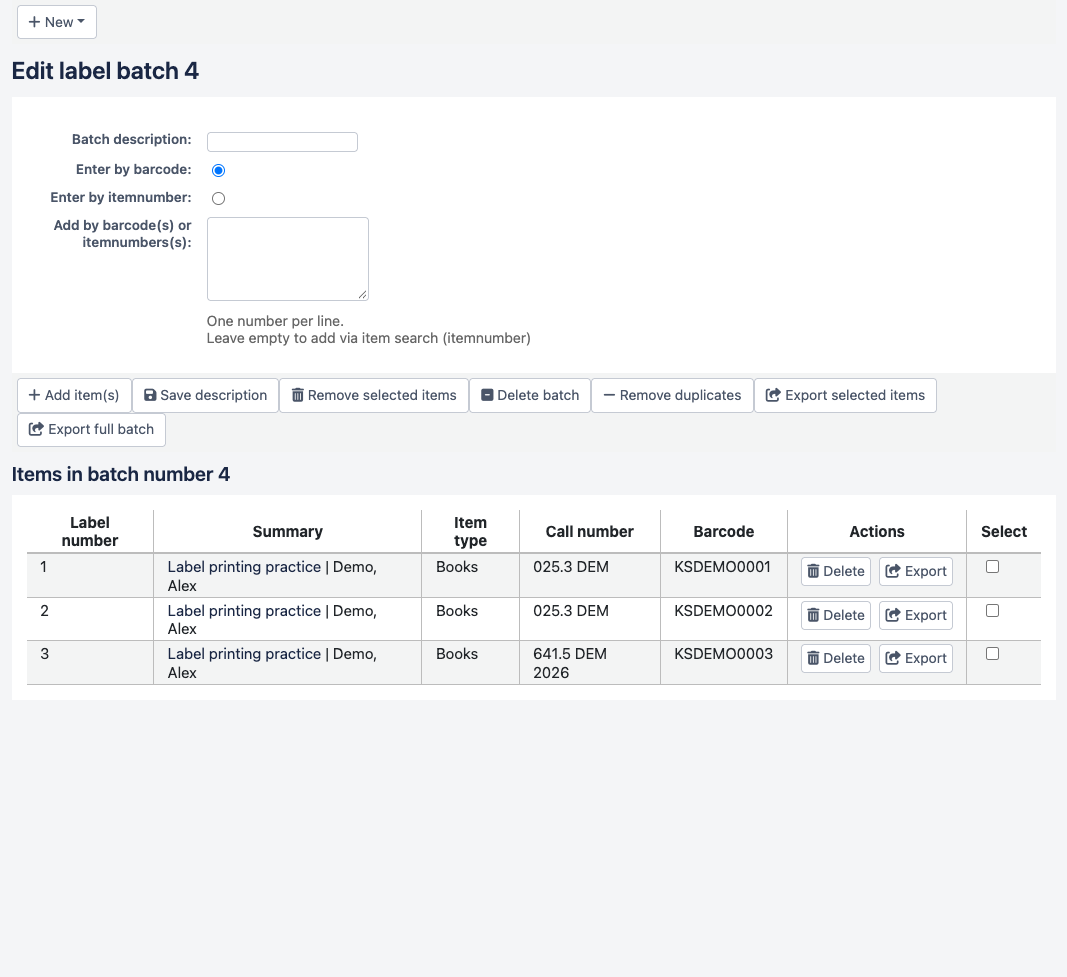
Count the rows and compare every barcode with the saved item and the book. Remove accidental duplicates. If an entered barcode produces no row, find the item and confirm it was saved; do not assume all scanned inputs were accepted. Keep physical books in the same order as the checked batch.
3. Select the tested template and layout
For this example, the saved template is KS-LABEL-SERIES-ROLL:
| Template field | Tested value |
|---|---|
| Units | Inches |
| Page and label width / height | 2 / 1 |
| Columns / rows | 1 / 1 |
| Top / left page margins | 0 / 0 |
| Top / left text margins | 0.25 / 0.10 |
| Column / row gaps | 0 / 0 |
| Profile | No Profile |
The layout is KS-LABEL-SERIES-BARCODE:
| Layout field | Tested value |
|---|---|
| Encoding | Code 39 |
| Layout type | Only the barcode is printed |
| Barcode width / height | 0.80 / 0.012 |
| Font / size / justification | Helvetica / 10 / Left |
| List fields | itemcallnumber (unused in barcode-only mode) |
| Split call numbers / guide boxes / oblique title | Off / Off / Off |
Reuse a library-approved template for your actual stock instead of copying this geometry onto different labels.
4. Export and inspect before printing
Select Export full batch, choose the template and layout, start at label 1, and download the PDF. Check page dimensions, label count, readable values, quiet zones, and the longest barcode.
The newly catalogued items sample contains three 2 × 1 inch pages. Each rasterized barcode decoded to its corresponding saved value at 300 and 600 dpi. No stored barcode changed during export.
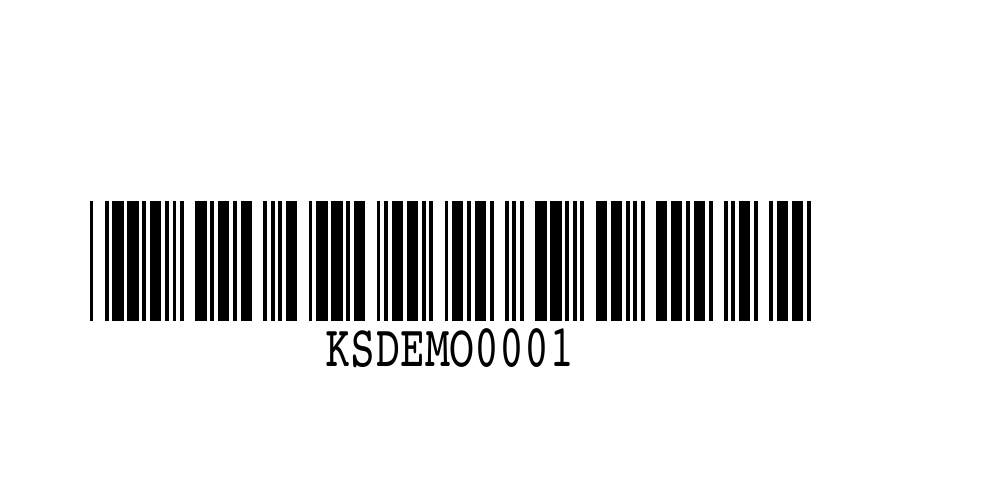
For spine labels, export the same checked batch again with the text-only spine layout, or use the combined-label tutorial.
5. Print, match, scan, and release
- Select the correct printer, driver media size, and 100% / Actual size. Disable Fit and Shrink.
- Print one label and verify feeding, alignment, legibility, and a physical scan.
- Print the small checked batch. Compare the readable barcode with the item and the physical book before attaching it.
- Scan into a plain text field to check the complete value, then into Koha’s item search.
- Confirm the title and the copy’s barcode, branch, and call number. Identical titles or call numbers do not distinguish copies.
- Check the spine label against the saved item and shelving policy. Release the books only after these local checks pass.
If a label is damaged during processing, reprint that item’s existing barcode; do not create another copy just to obtain a new label.
Source: Koha 25.11 item records and Label creator. See the series verification details.
Next Steps
More in Koha System
Was this article helpful?