
How to Print Barcode and Spine Labels Together in Koha
Compare combined Koha barcode-and-text labels with alternating spine/barcode pairs. Includes exact tested layouts, screenshots, and both sample PDFs.
Choose whether you want one label containing both call number and barcode, or two separate labels per item. Koha’s combined and alternating layout types produce different output counts and use different amounts of stock.
Software verified: Koha 25.11.04, 2026-11-12, with three synthetic items. Both PDF layouts were rendered and checked. Physical printer and scanner: not tested.
1. Choose the output shape
| Choice | Output for three items | When to consider it |
|---|---|---|
| Bibliographic data precedes barcode | 3 labels | One label has room for the call number and bars |
| Barcode and bibliographic data are printed on alternating labels | 6 labels | Separate stickers of the same stock size |
| Two exports with different templates | Two independent print runs | Narrow spine stock plus wider barcode stock |
One combined sticker cannot be attached to two places. If the barcode belongs inside the book and the call number on its spine, use separate labels. If the two label sizes differ, do not force them into a single alternating template.
2. Create one checked item batch
In Cataloging → Tools → Label creator, create a batch and add the saved item barcodes one per line. Check each copy and remove accidental duplicates before exporting.
Our batch uses KSDEMO0001, KSDEMO0002, and KSDEMO0003; their call numbers are 025.3 DEM, 025.3 DEM, and 641.5 DEM 2026.
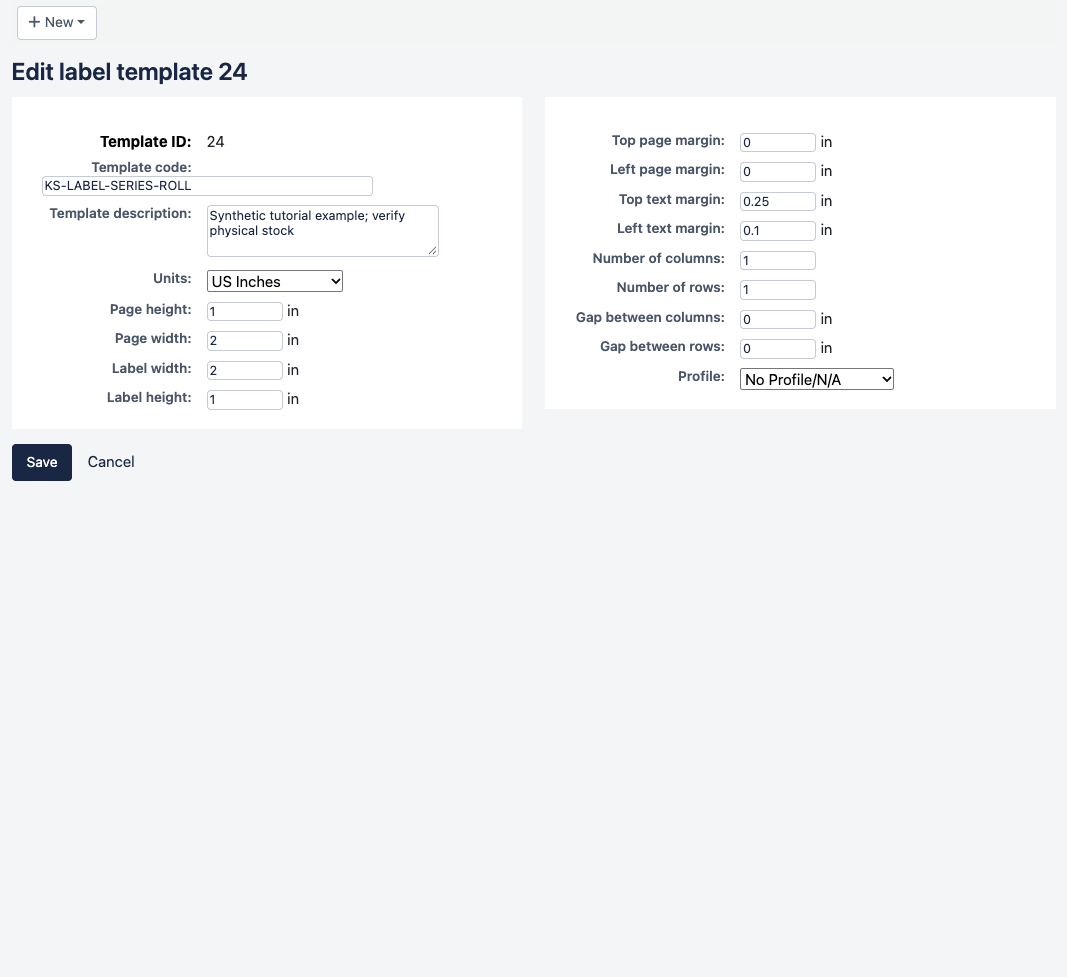
The tested template is:
| Template field | Tested value |
|---|---|
| Template code | KS-LABEL-SERIES-ROLL |
| Units | Inches |
| Page and label width / height | 2 / 1 |
| Columns / rows | 1 / 1 |
| Top / left page margins | 0 / 0 |
| Top / left text margins | 0.25 / 0.10 |
| Column / row gaps | 0 / 0 |
| Profile | No Profile |
3. Put text and bars on the same label
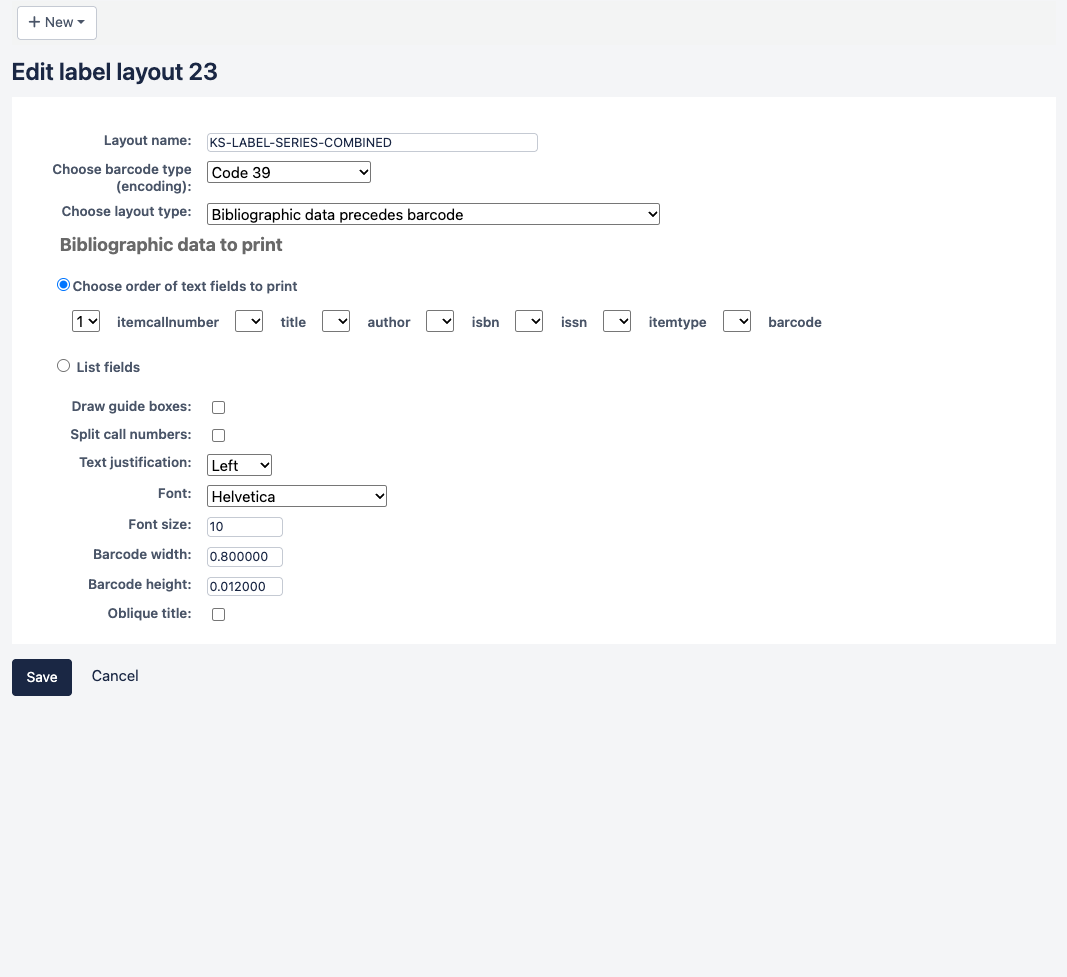
Create the KS-LABEL-SERIES-COMBINED layout:
| Layout field | Tested value |
|---|---|
| Layout type | Bibliographic data precedes barcode |
| List fields | itemcallnumber |
| Split call numbers | Off |
| Barcode encoding | Code 39 |
| Barcode width / height | 0.80 / 0.012 |
| Font / size / justification | Helvetica / 10 points / Left |
| Guide boxes / oblique title | Off / Off |
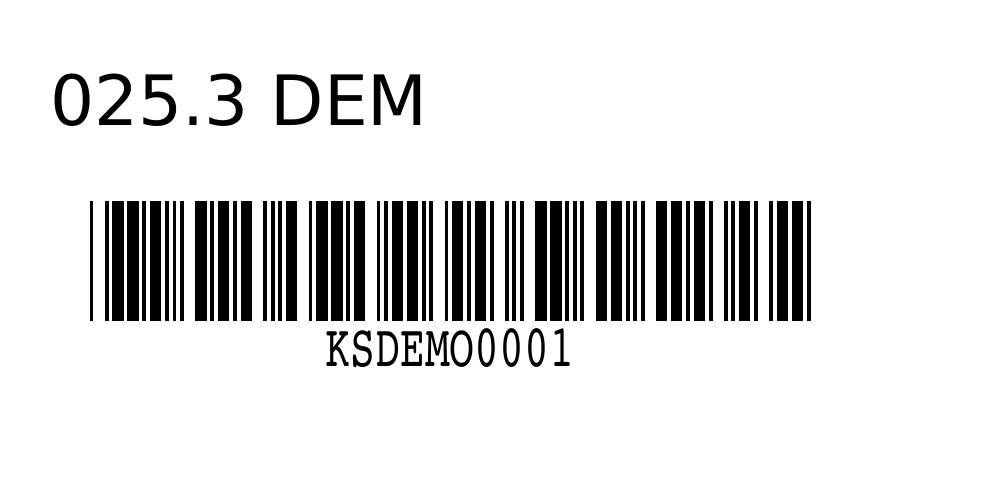
Select Export full batch, the roll template, this layout, and starting label 1. The combined-label sample contains three 2 × 1 inch pages. Each shows its call number above its barcode. All three barcodes decoded exactly at 300 and 600 dpi, and the call numbers were inspected visually.
Keep fields selective. Adding title, author, branch, and multiple identifiers can crowd the bars. Test your longest call number and barcode together; our short synthetic examples do not establish that every real identifier will fit.
4. Produce separate spine/barcode pairs
Create a second layout using Barcode and bibliographic data are printed on alternating labels. Our saved name appears as KS-LABEL-SERIES-ALTERNATI. Use the same settings above but turn Split call numbers On.
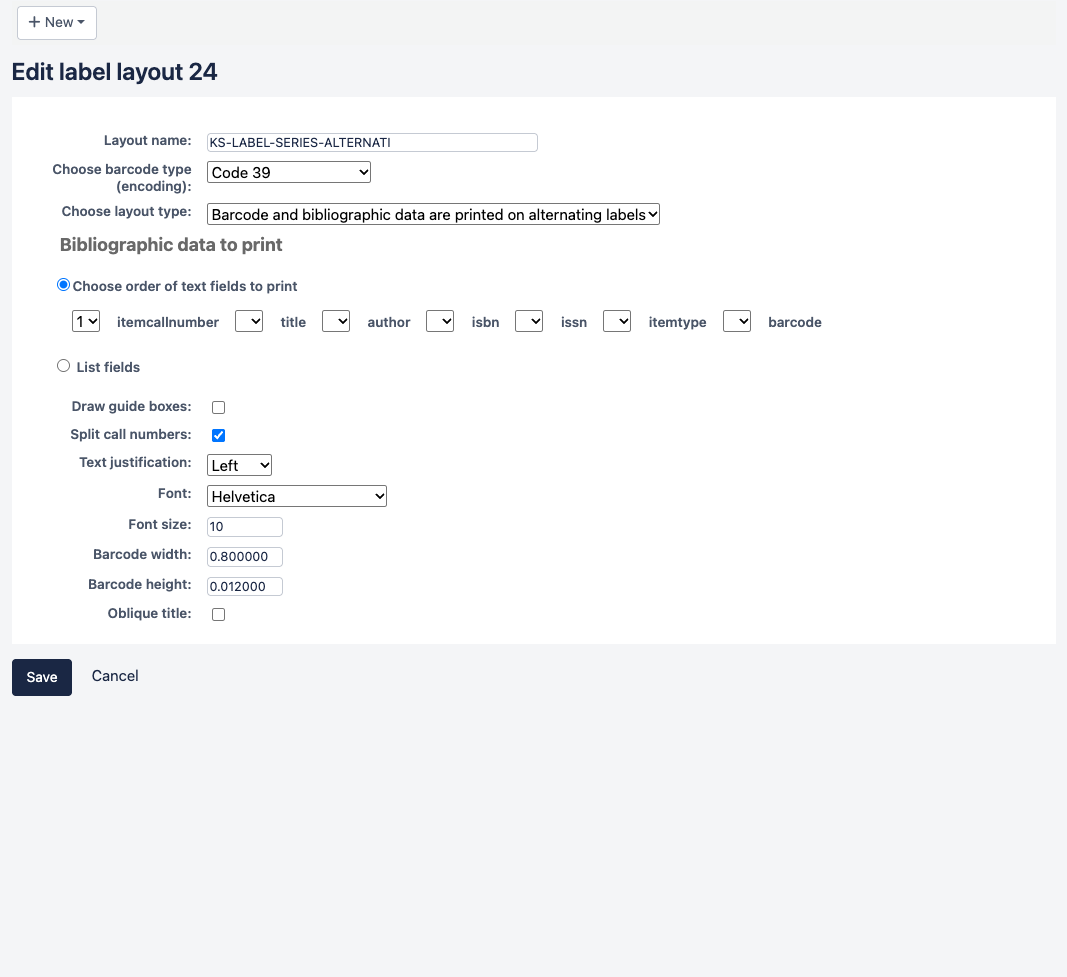
Export the same batch, template, and starting label 1. The alternating-label sample contains:
| PDF page | Content |
|---|---|
| 1 | Call number for KSDEMO0001 |
| 2 | Barcode KSDEMO0001 |
| 3 | Call number for KSDEMO0002 |
| 4 | Barcode KSDEMO0002 |
| 5 | Call number for KSDEMO0003 |
| 6 | Barcode KSDEMO0003 |
Each label consumes a stock position. On sheets, a text/barcode pair can cross a row or page boundary; do not assume the pair will always be side by side. Keep the output in order and compare every pair with the book before attaching it.
5. Print a small pair before processing a batch
Use 100% / Actual size, the exact driver media size, and one PDF page per physical label for this template. Check text size, separation from bars, quiet zones, and placement on the book. Scan each barcode into a text field and Koha, confirming the correct copy.
If the two-label version cannot fit a long call number at a readable size, use the dedicated taller spine template and a separate barcode export. Do not shrink both outputs merely to keep one print job.
Source: Koha 25.11 Label creator layout types. Full series and verification details.
Next Steps
More in Koha System
Was this article helpful?