
How to Print Spine Labels in Koha
Print Koha call-number spine labels with a tested PDF layout, or use Quick spine labels for one book. Includes settings, screenshots, and a sample PDF.
Use Label creator for reusable PDF spine-label batches; use Quick spine label creator for a single browser-printed call number. They have separate formatting controls. Changing a PDF layout will not change Quick spine output.
Software verified: Koha 25.11.04, 2026-11-12, with three synthetic demo items. Physical printer and scanner: not tested. The measurements below describe the exported PDF, not a recommendation for an untested stock product.
1. Check the item’s call number
Open the correct copy’s item record and check Full call number (itemcallnumber) and its classification source. A title can have several copies with different call numbers. Do not copy the bibliographic classification into every item without checking local shelving practice.
Our examples use 025.3 DEM and 641.5 DEM 2026, with Dewey as the item classification source. Decide whether the classification, cutter, and date should occupy separate lines. Test your longest real call number as well as an ordinary one.
2. Create the PDF template
Go to Cataloging → Tools → Label creator → New → Label template. Create a dedicated test template rather than editing one another workstation uses.
| Template field | Tested value |
|---|---|
| Template code | KS-LABEL-SERIES-SPINE |
| Units | Inches |
| Page width / height | 1 / 1.5 |
| Label width / height | 1 / 1.5 |
| Columns / rows | 1 / 1 |
| Top / left page margin | 0 / 0 |
| Top / left text margin | 0.25 / 0.10 |
| Column / row gap | 0 / 0 |
| Profile | No Profile |
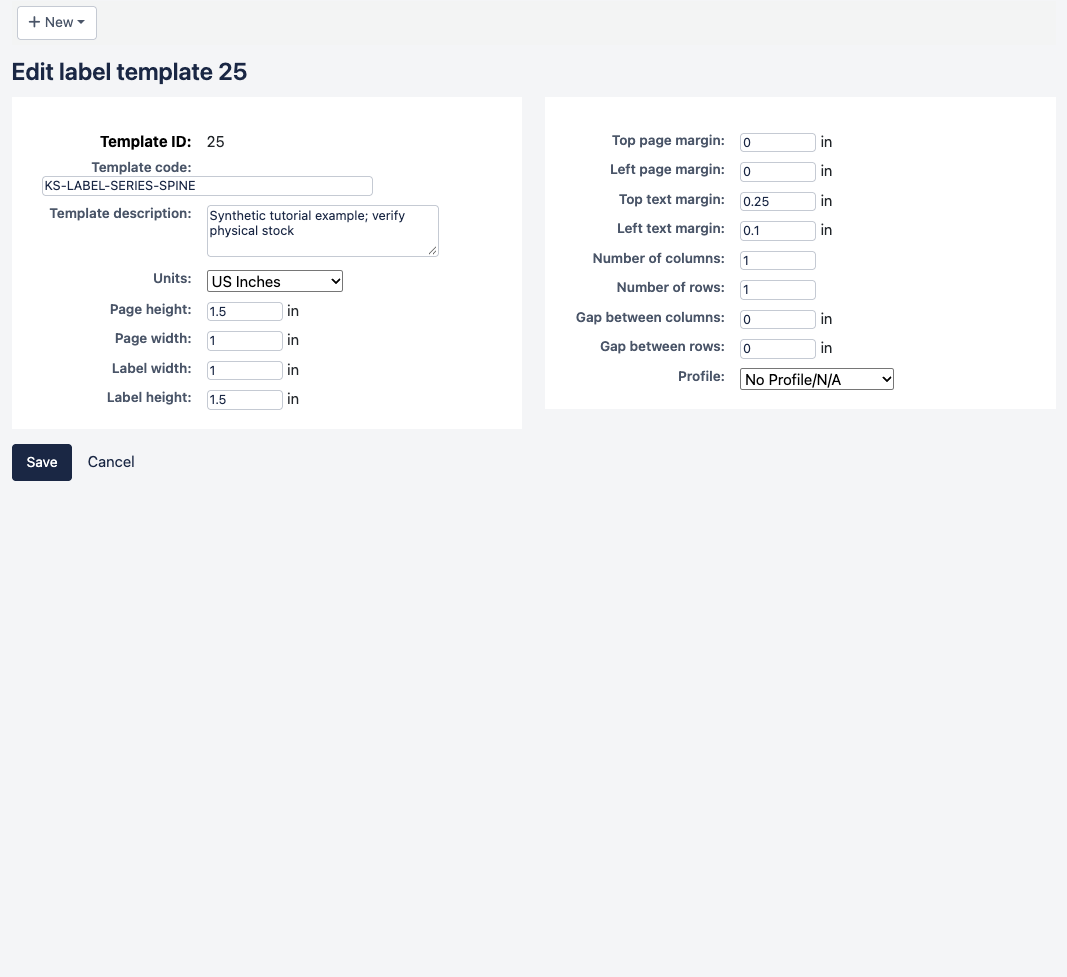
This is one PDF page per label. For sheets, replace the page geometry with your sheet measurements; do not print this roll-sized PDF using Fit to page.
3. Create a readable text layout
Select New → Layout and save these settings:
| Layout field | Tested value |
|---|---|
| Layout name | KS-LABEL-SERIES-SPINE |
| Layout type | Only the bibliographic data is printed |
| List fields | itemcallnumber |
| Split call numbers | On |
| Font / size | Helvetica / 12 points |
| Text justification | Left |
| Guide boxes / oblique title | Off / Off |
The barcode fields are unused by this text-only layout. In our saved layout they remain Code 39, width 0.80, height 0.012.
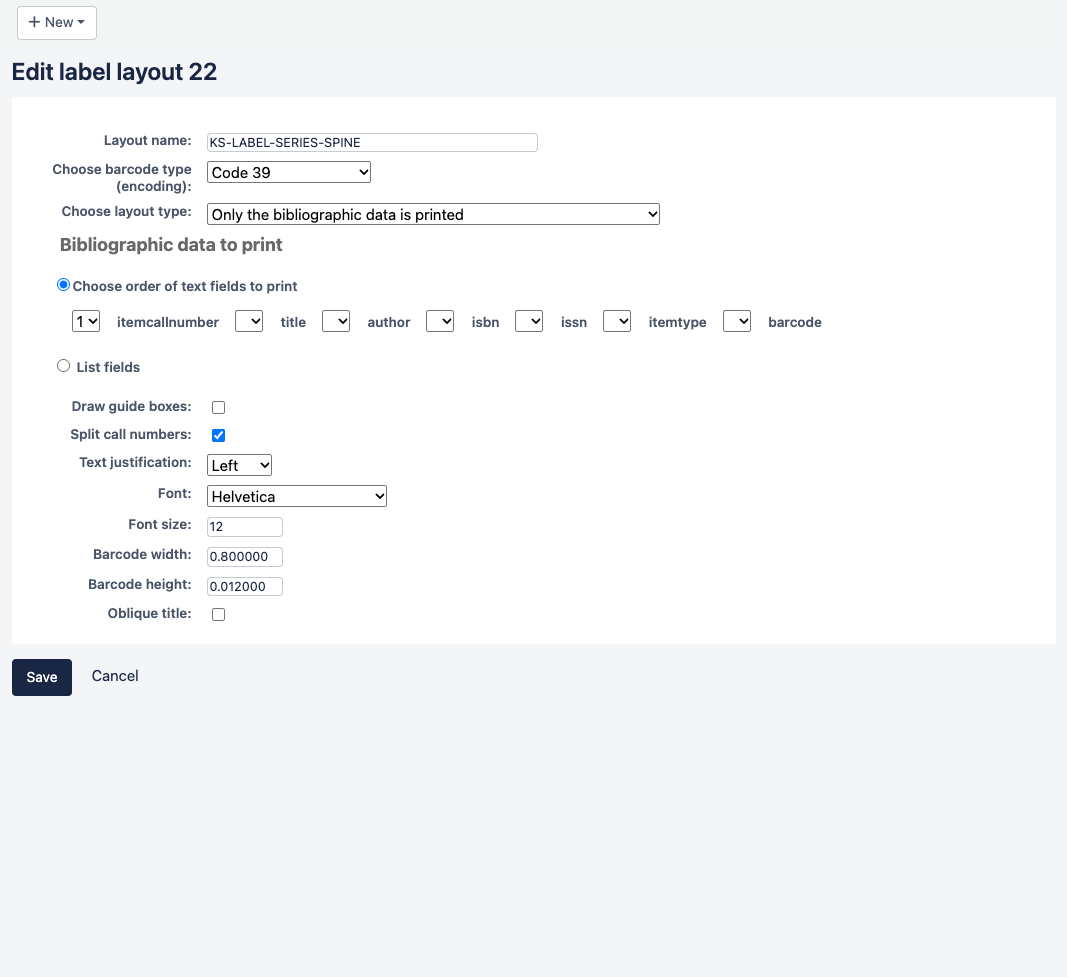
The test PDF splits 641.5 DEM 2026 into three lines. Splitting depends on the call number and classification source; inspect the result rather than assuming every punctuation mark creates a line. If a call number is cut off, check text margins, available height, and line count before reducing the font.
4. Export and inspect
Create a New → Label batch, add the existing item barcodes one per line, and select Add item(s). Check every row, then choose Export full batch, the spine template, the spine layout, and starting label 1. Download the PDF.
The three-page spine-label sample has one label on each 1 × 1.5 inch page. Pages 1 and 2 show 025.3 / DEM; page 3 shows 641.5 / DEM / 2026.

Print at 100% / Actual size, with the matching driver size and one PDF page per label. Check the physical text size, line order, and fit on the actual book spine before printing a batch.
5. Use Quick spine labels for one book
Go to Cataloging → Tools → Quick spine label creator, enter an existing item barcode, and select View spine label. Check the copy, then choose Print this label.

The demo’s existing SpineLabelFormat was <itemcallnumber><copynumber>, and SpineLabelAutoPrint was off. The test item had no copy number. We verified the browser output without changing these shared preferences or opening a physical printer.
For call-number-only output, an administrator can use <itemcallnumber> in SpineLabelFormat. Get agreement before changing a shared preference. Quick-label CSS and browser print settings control its appearance; PDF templates and printer profiles do not. In the browser print dialog, choose 100%, disable headers and footers, and check margins and media size.
Sources and next steps
Next Steps
More in Koha System
Was this article helpful?