
How to Print Koha Barcode Labels on Avery Sheets
Set up a Koha label-sheet template with a Letter-size Avery 5160 example, exact margins, actual-size printing, and a tested starting position.
For sheet labels, the Koha page size is the whole sheet, not one label. Match the product’s dimensions, rows, columns, page margins, and gaps before adjusting printer offsets.
Software verified: Koha 25.11.04, 2026-11-12, using synthetic values. Physical printer and scanner: not tested. This is a PDF-verified 5160-pattern example, not certification of a printer or a particular pack of labels.
1. Identify and measure the sheet
Check the product number and the manufacturer’s template. Our example uses the Avery 5160 template. Do not apply a Letter-size template to an A4 product just because the labels look similar.
Measure a full sheet: width and height, one label, the top and left edge to the first label, the gaps, and the number of rows and columns. Check the printer’s instructions for compatible stock, printable area, tray, and feed direction.
2. Save this test template
In Cataloging → Tools → Label creator, select New → Label template.
| Template field | Tested value, inches |
|---|---|
| Template code | KS-LABEL-SERIES-AVERY5160 |
| Units | Inches |
| Page width / height | 8.5 / 11 |
| Label width / height | 2.625 / 1 |
| Columns / rows | 3 / 10 |
| Top / left page margin | 0.5 / 0.1875 |
| Top / left text margin | 0.25 / 0.10 |
| Gap between columns / rows | 0.125 / 0 |
| Profile | No Profile |
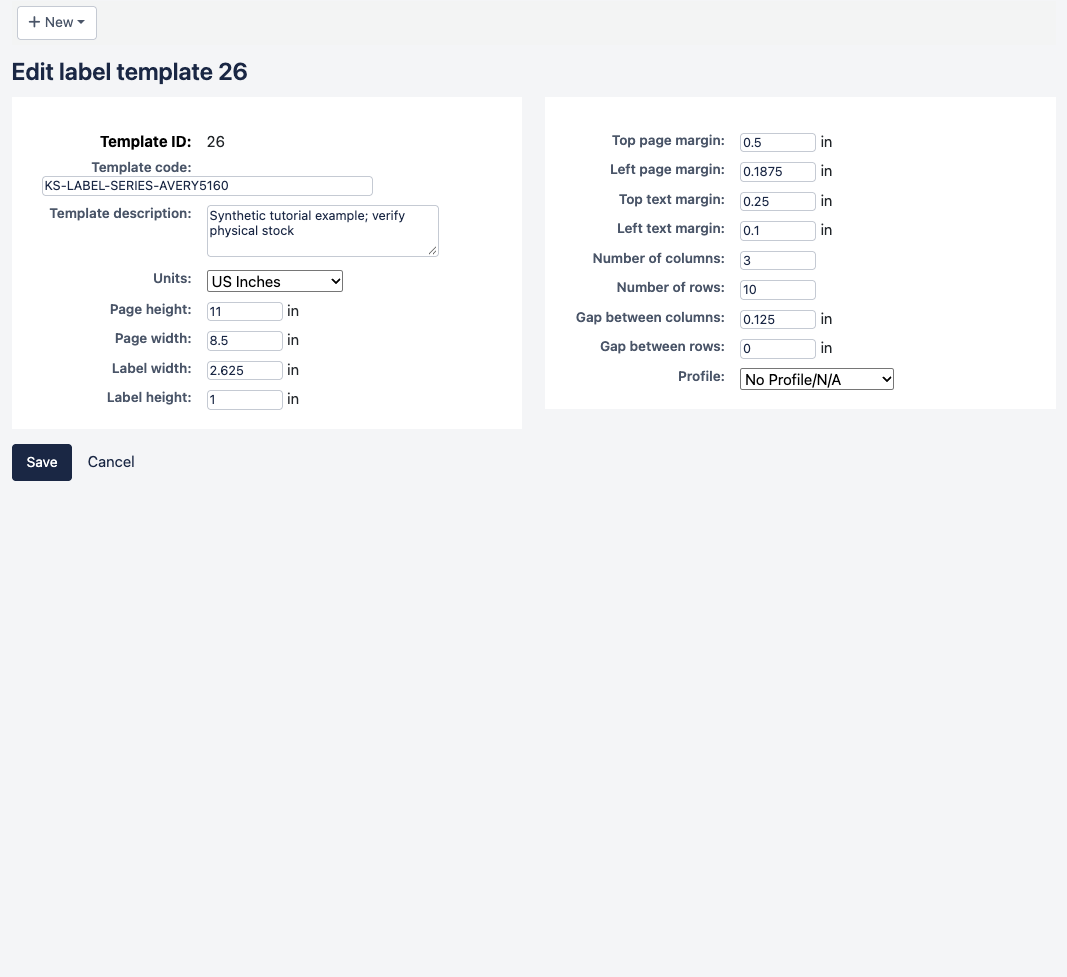
Geometry check: 0.1875 + (3 × 2.625) + (2 × 0.125) + 0.1875 = 8.5 inches. Vertically, 0.5 + (10 × 1) + 0.5 = 11 inches. This checks arithmetic, not physical feed accuracy.
3. Save a barcode layout
Select New → Layout:
| Layout field | Tested value |
|---|---|
| Layout name | KS-LABEL-SERIES-BARCODE |
| Barcode encoding | Code 39 |
| Layout type | Only the barcode is printed |
| Barcode width / height | 0.80 / 0.012 |
| Font / size / justification | Helvetica / 10 / Left |
| List fields | itemcallnumber (unused in barcode-only mode) |
| Split call numbers / guide boxes / oblique title | Off / Off / Off |
The barcode renderer includes the readable value. These scaling factors were tested with this 1-inch-high label; they are not universal percentages to copy to another height.
For real books, create a Label batch and add existing item barcodes. Check that the rows match the copies in front of you, then select Export full batch and your template and layout.
4. Check a full sheet before using adhesive stock
Download the full 30-label test sheet. It contains synthetic numbers 00910001 through 00910030; do not use these demonstration numbers on library items.
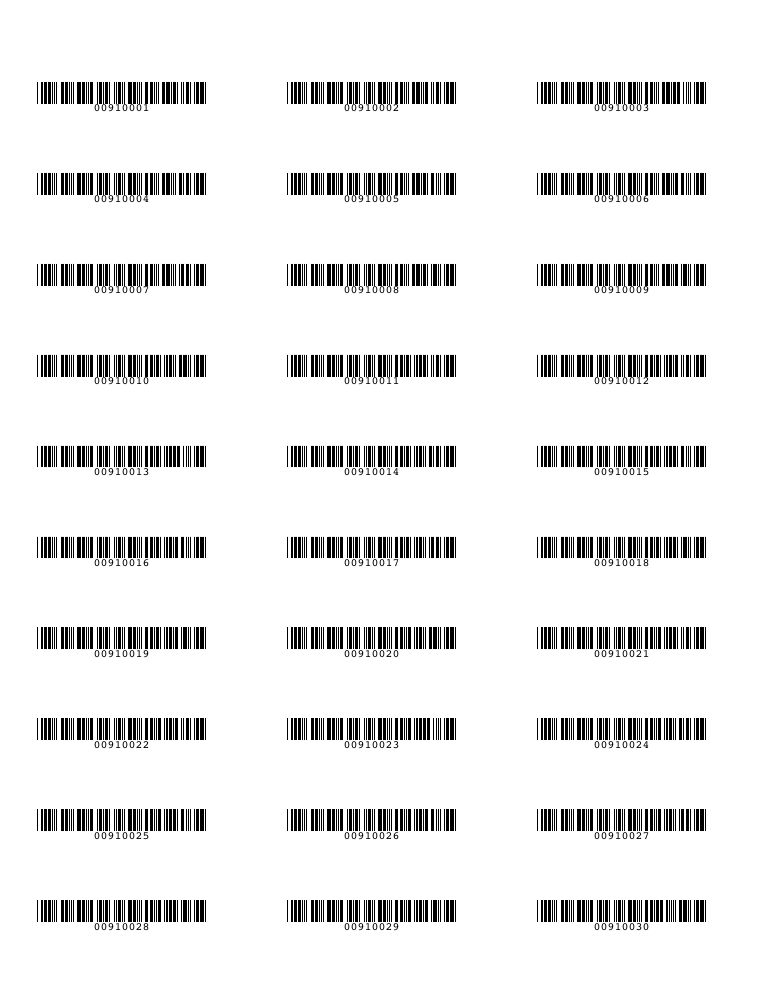
Print on plain paper at 100% / Actual size, Letter size, one PDF page per sheet, with Fit and Shrink disabled. Hold it against unused label stock in good light. Check all four corners, the middle, and the last row. Only use adhesive stock once the paper test aligns.
The software test checked the Letter PDF dimensions and all 30 decoded values at their expected row and column, at 300 and 600 dpi. Paper alignment still needs a local test.
5. Start on a partly used sheet
Koha’s tested export order is left to right, then down:
| Row | Left | Middle | Right |
|---|---|---|---|
| 1 | 1 | 2 | 3 |
| 2 | 4 | 5 | 6 |
| 3 | 7 | 8 | 9 |
If positions 1 through 4 are used and the next positions are intact, enter 5 as the starting label when exporting. The start-at-5 sample prints KSDEMO0001, KSDEMO0002, and KSDEMO0003 in positions 5, 6, and 7, leaving earlier positions blank.
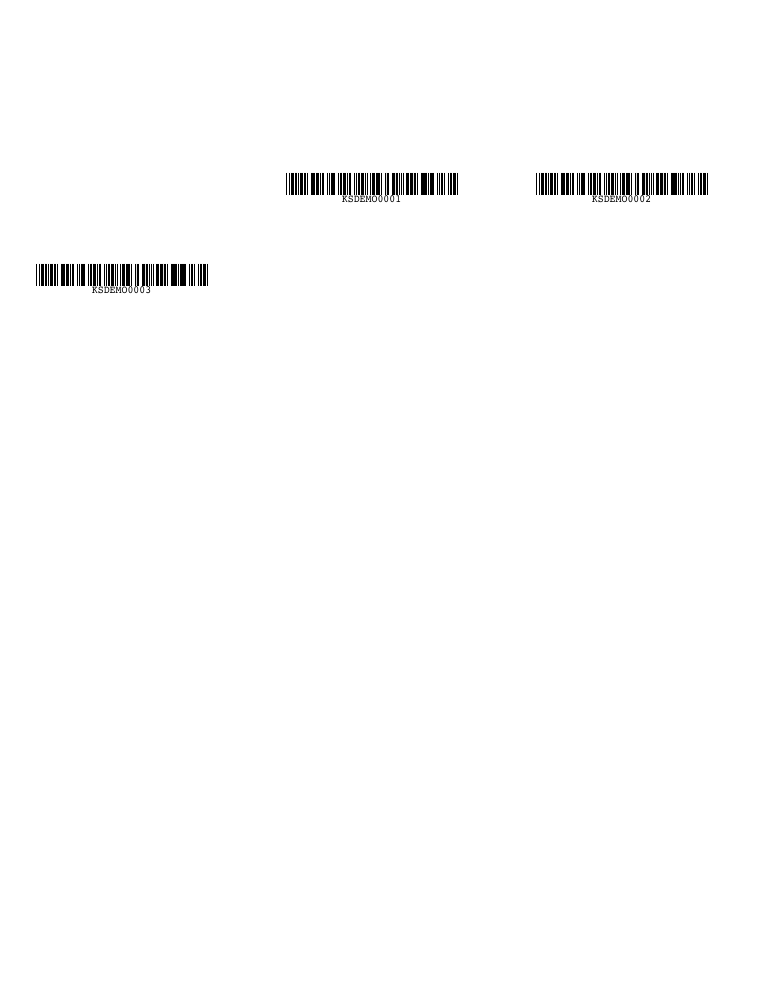
This skips a continuous prefix, not an arbitrary set of missing labels. Do not refeed a partly used sheet unless both the stock and printer instructions permit it. If refeeding is not supported or the missing labels are scattered, use a fresh sheet or suitable roll stock.
If alignment is wrong
Fix paper size and scaling first. A constant shift calls for measured offsets after geometry is correct; drift between rows calls for checking label pitch and gaps before creep. Follow the label troubleshooting sequence.
Sources: Koha 25.11 Label creator, Avery 5160 template. See the full series and verification limits.
Next Steps
More in Koha System
Was this article helpful?