
How to Generate Barcode Ranges Safely in Koha
Generate a numeric Koha barcode range with leading zeros, check for existing and reserved numbers, and assign each printed label to an item safely.
Print barcode range produces labels, not catalogue items or a reservation of those numbers. Check the proposed range before printing, coordinate its allocation, and save each barcode on the correct item before circulation.
Software verified: Koha 25.11.04, 2026-11-12, with synthetic numeric values. We verified zero padding, PDF output, and that export created no items. Physical printer and scanner: not tested.
1. Agree on numbering before generating
Record the identifier length, permitted characters, next available number, owner of the sequence, and how other cataloguers reserve numbers. Coordinate Koha auto-generated barcodes, imported records, existing sticker stock, and other branches. A gap in a sequence is not proof that a number is available.
Use the numeric range tool for a numeric sequence. If your identifiers need an alphabetic prefix or another structured scheme, do not assume that entering letters here will preserve them; use an approved allocation/import workflow and test it separately.
Leading zeros are part of the identifier. Keep barcode columns as text in spreadsheets and exports. 00910001 is not interchangeable with 910001.
2. Preview exact candidate values and check duplicates
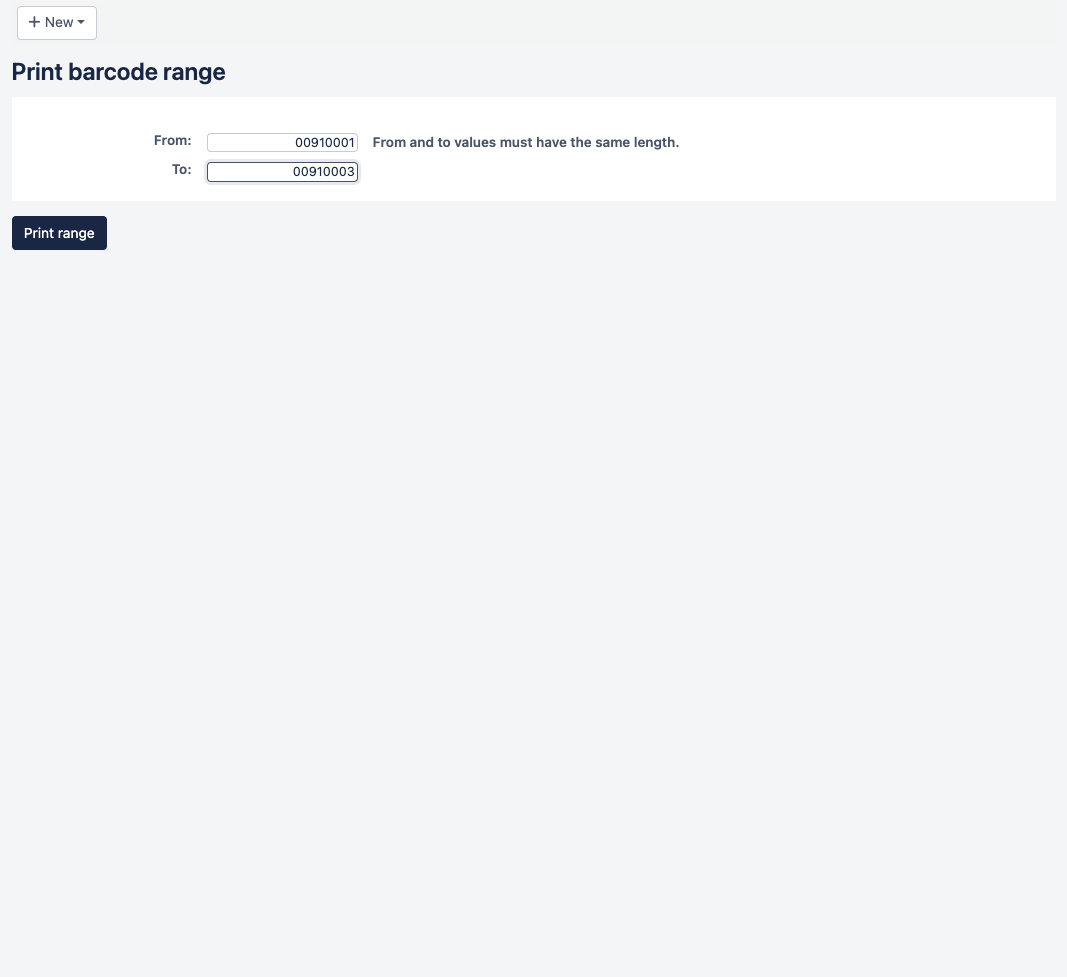
For this demonstration, From 00910001, To 00910003 gives:
| Range value | Printed and stored identifier to check |
|---|---|
00910001 |
00910001 |
00910002 |
00910002 |
00910003 |
00910003 |
Check the padded strings, not just the unpadded inputs. For a small range, an administrator can use a read-only SQL report against items:
SELECT itemnumber, biblionumber, barcode
FROM items
WHERE barcode IN ('00910001', '00910002', '00910003')
ORDER BY barcode;
Any returned row is a collision: do not print that number as a new identity. No returned rows proves only that these values were not in items at query time; also check unassigned printed stock, reserved sequences, and concurrent work. Do not use a lexicographic BETWEEN check for mixed-width barcode strings. For a large run, have an administrator compare the complete explicit candidate list with existing and reserved identifiers.
Record the approved allocation before printing. The range exporter is not a locking or reservation mechanism.
3. Generate a small test range
Go to Cataloging → Tools → Label creator → Print barcode range. Enter From 00910001 and To 00910003, then Print range. In the export dialog select your template, layout, and starting label 1, then Export → Download as PDF.
In this tested version, padding is derived from the character count of the From value. There is no separate visible barcode-length field. Entering 910001 instead would request six-character output. Preserve the leading zeros in From, and keep both endpoints the same width.
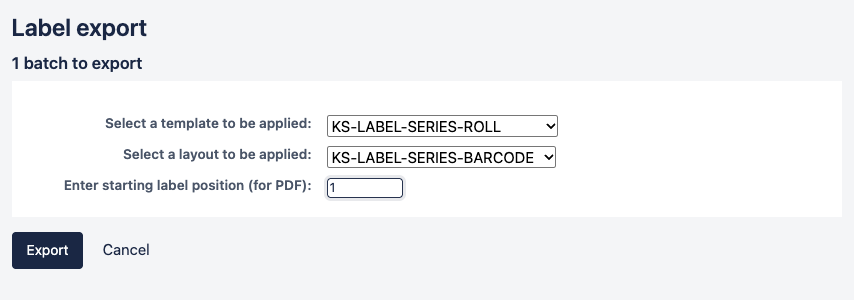
The demonstration uses these exact saved settings:
| Setting | Tested value |
|---|---|
| Template | KS-LABEL-SERIES-ROLL |
| Units; page and label width / height | Inches; 2 / 1 |
| Columns / rows | 1 / 1 |
| Page margins; row and column gaps | All 0 |
| Top / left text margins | 0.25 / 0.10 |
| Profile | No Profile |
| Layout | KS-LABEL-SERIES-BARCODE |
| Encoding / layout type | Code 39 / Only the barcode is printed |
| Barcode width / height | 0.80 / 0.012 |
| Font / size / justification | Helvetica / 10 / Left |
| List fields | itemcallnumber (unused in barcode-only mode) |
| Split call numbers / guide boxes / oblique title | Off / Off / Off |
Download the three-page range sample. It contains 00910001, 00910002, and 00910003 on 2 × 1 inch pages. Every barcode decoded exactly at 300 and 600 dpi. A subsequent item query still found zero items with these three barcodes.
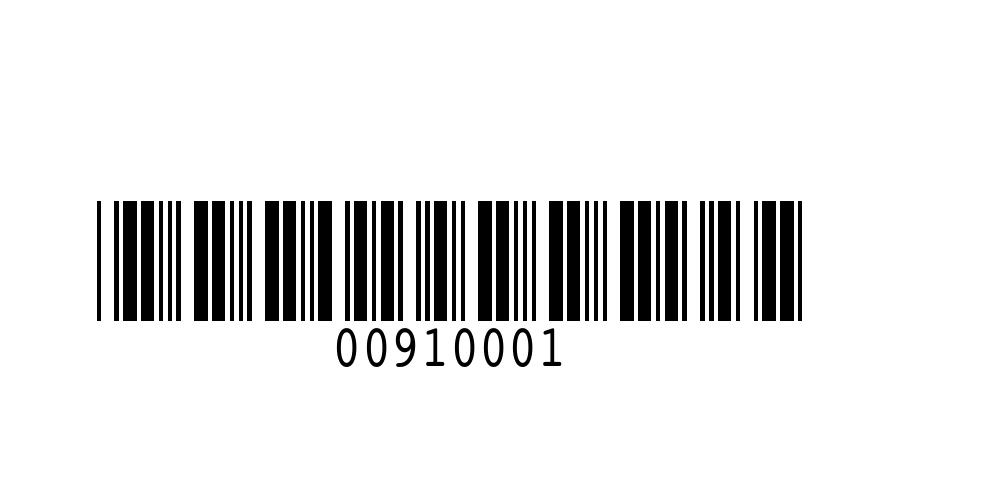
These are synthetic sample values, not numbers reserved for your library.
4. Print and assign one label at a time
Print at 100% / Actual size, matching the driver format. Verify the first and last values, count, zero padding, physical scan, and feed before printing more.
Keep unassigned labels controlled. For each new copy, scan its unused label into the item’s barcode field, save the item, then scan again and verify the correct title and copy. Mark the number as assigned in the allocation record. Do not put an unassigned barcode into circulation.
If Koha reports a duplicate when saving, stop and locate the existing item. Do not overwrite another item’s barcode or silently choose the next number. Recheck the allocation and any remaining printed stock.
For an existing damaged label, use replacement-label printing instead of generating a new range.
Source: Koha 25.11 Label creator and barcode ranges. Full series and verification limits.
Next Steps
More in Koha System
Was this article helpful?