
How to Replace Damaged Barcode Labels in Koha
Find the correct existing Koha item and reprint its current barcode without creating a replacement item or changing the copy's identifier.
A damaged sticker usually needs a reprint of the current item’s barcode, not a new barcode or item record. Keep the same item identity and verify the physical copy before attaching anything.
Software verified: Koha 25.11.04, 2026-11-12, using a synthetic existing item. A single-item export reproduced its saved barcode, and the item identifier was unchanged. Physical printer and scanner: not tested. This was not a circulation-history simulation.
1. Identify the existing copy
If the readable number survives, enter it exactly in staff item search. If not, search the title or other surviving details and open its holdings. Compare the owning and holding branch, call number, copy information, and any local accession marks.
Two copies can have the same title and call number. Do not select one solely because those match. If identity remains uncertain, set the book aside for an authorised staff member to resolve. Do not invent a barcode or create a duplicate item as a shortcut.
Our demonstration item is KSDEMO0001, with call number 025.3 DEM. These are sample values only.
2. Put only that item in the export
Open Cataloging → Tools → Label creator. Either:
- Create a new label batch containing only the existing barcode, then Export full batch; or
- In a checked batch, choose Export beside the correct item.
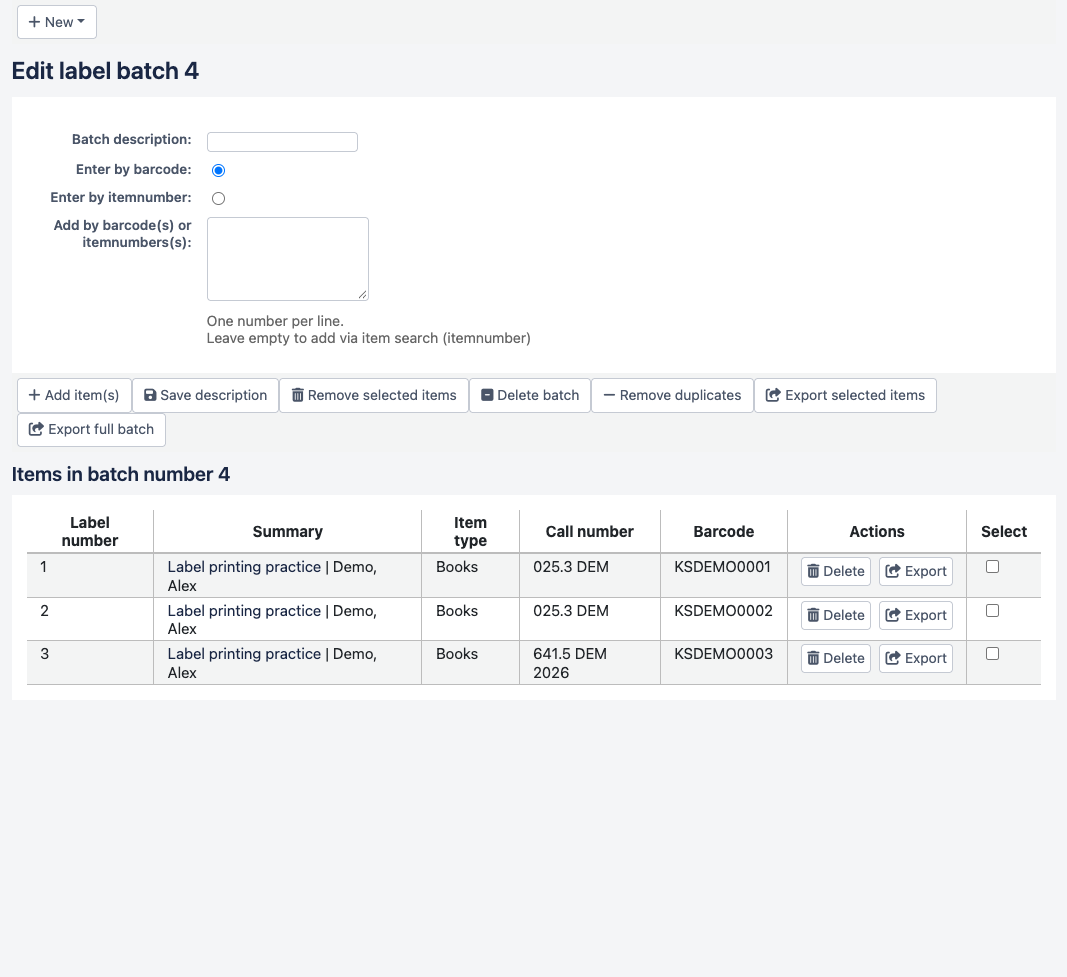
Check the export scope carefully. The source batch in our screenshot contains three items, but the replacement PDF was generated using only the first item’s internal item number. The resulting PDF has one page, not three. A full-batch export would reprint every row.
3. Use a known template and layout
Our replacement used:
| Setting | Tested value |
|---|---|
| Template | KS-LABEL-SERIES-ROLL |
| Units; page and label width / height | Inches; 2 / 1 |
| Columns / rows | 1 / 1 |
| Top / left page margins; column / row gaps | All 0 |
| Top / left text margins | 0.25 / 0.10 |
| Profile | No Profile |
| Layout | KS-LABEL-SERIES-BARCODE |
| Barcode encoding / printing type | Code 39 / Only the barcode is printed |
| Barcode width / height | 0.80 / 0.012 |
| Font / size / justification | Helvetica / 10 / Left |
| List fields | itemcallnumber (unused in barcode-only mode) |
| Split call numbers / guide boxes / oblique title | Off / Off / Off |
| Starting label | 1 |
Use your library’s calibrated stock settings in practice. For sheets, see Avery labels and starting positions.
Download the one-page replacement sample. Its Code 39 barcode decoded to KSDEMO0001 at 300 and 600 dpi. The saved item’s barcode remained KSDEMO0001.
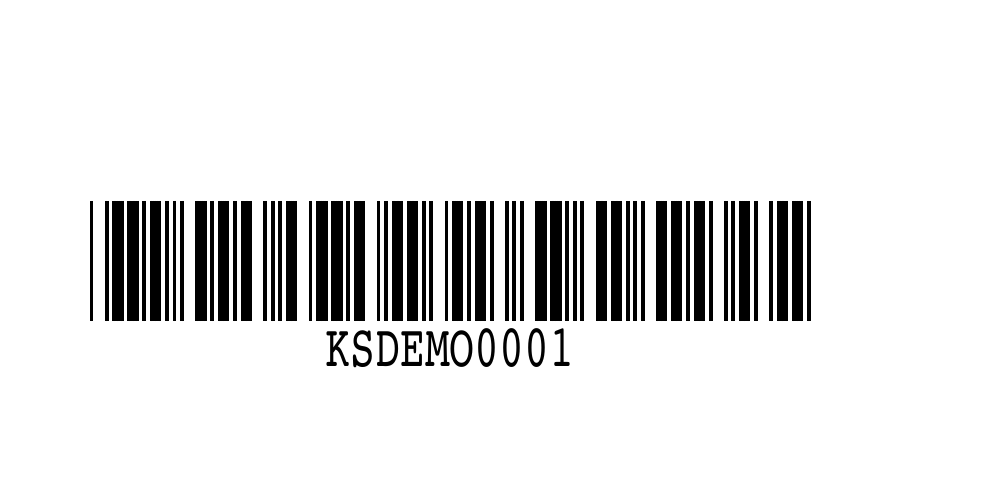
4. Print and verify before covering the old label
- Print at 100% / Actual size, with the matching driver media size.
- Compare the readable replacement value with the saved item.
- Scan into a plain text field and check the whole value, including any leading zeros.
- Search Koha with the scan and confirm the same copy, not merely the same title.
- Attach the replacement according to your library’s conservation and label-placement policy. Avoid leaving two different readable barcodes on the item.
- Scan once more after attachment, checking that a cover or surface does not prevent reading.
Physical scanning and adhesion must be checked locally; PDF decoding does not validate the finished book.
Keep reprinting separate from renumbering
Do not delete and recreate the item, change its barcode, or use Print barcode range for this repair. Those are different operations with different consequences. Reprinting exports the existing identifier; it does not require editing the item’s circulation identity.
If the barcode itself is wrong or duplicated, escalate that as an item-data correction under local policy. Do not hide a data problem by changing numbers during a sticker replacement.
Source: Koha 25.11 Label creator and single-item exports. Full series and verification limits.
Next Steps
More in Koha System
Was this article helpful?