
How to Preview, Publish, and Roll Back Theme Builder Changes
Safe workflow for previewing, publishing, and rolling back Koha Theme Builder™ changes with approval and quality checks.
This guide explains the safest workflow for previewing, publishing, and reversing Theme Builder changes.
Why this matters
Publishing affects the live OPAC immediately for patrons. A review workflow reduces avoidable incidents.
What preview means
Preview lets you validate design and content before making changes live.
What publish means
Publish applies approved Theme Builder changes to the live OPAC.
Safe workflow
- Make changes in Theme Builder.
- Use preview mode.
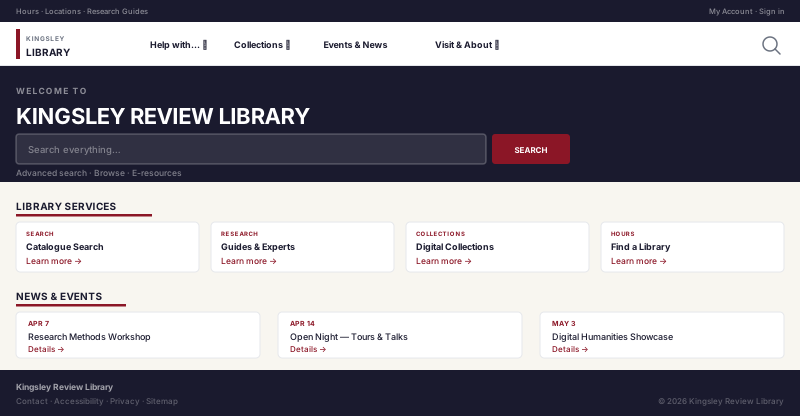
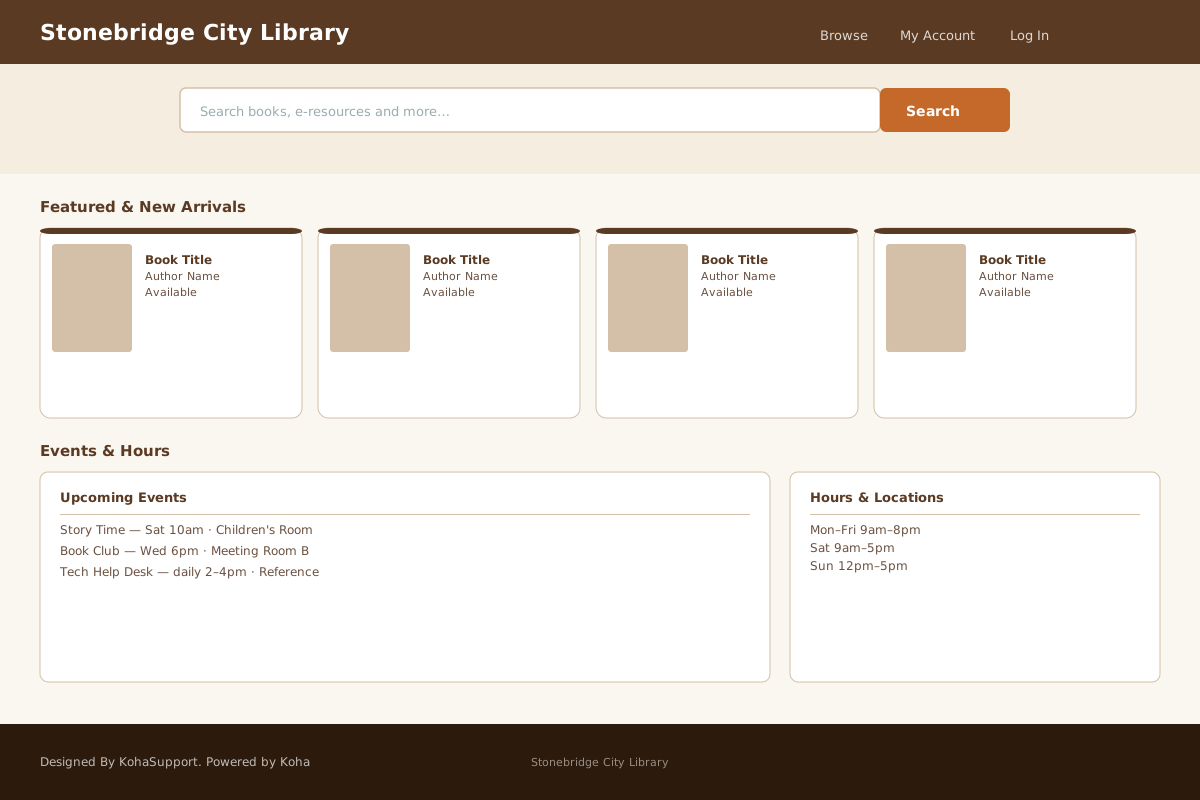
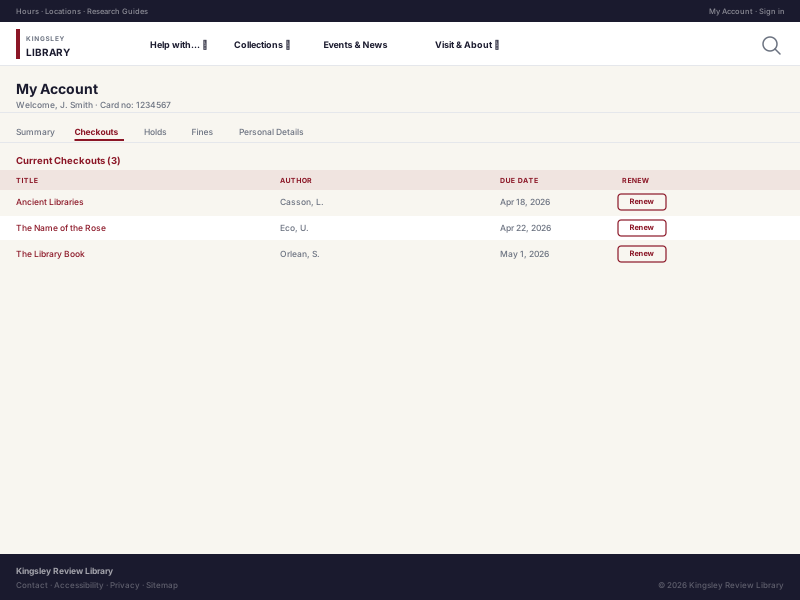
- Check homepage, search, bib detail, and account pages.
- Check desktop and mobile layouts.
- Run link validation for edited navigation and CTAs.
- Ask approver to review.
- Publish in a low-risk time window.
- Verify live OPAC behavior.
Before you publish Confirm content accuracy, spelling, and branch scope. Most post-publish issues are avoidable with a two-person check.
Rollback guidance
If your environment has rollback/version controls enabled:
- Open Theme Builder history or rollback section.
- Select the previous known-good version.
- Preview the rollback state.
- Publish rollback.
- Verify live pages.
If rollback/version controls are not enabled:
- Revert changed values manually.
- Re-apply last approved configuration.
- Publish and verify.
Common mistakes
- Publishing directly from first draft
- Reviewing only the homepage
- Skipping mobile checks
- Forgetting branch-scoped validation
Preview and publish visuals
Related guides
Next Steps
More in Koha System
Was this article helpful?