
Getting Started with Koha Theme Builder™
Step-by-step tutorial for first-time setup of Koha Theme Builder™, including prerequisites, preset selection, branding, preview, and publish workflow.
This guide shows you how to set up Koha Theme Builder™ for the first time and publish a polished OPAC safely.
Why this matters
A clear setup process prevents rushed changes, branding inconsistencies, and homepage mistakes that patrons notice immediately.
Who this guide is for
- Library administrators
- Staff assigned to OPAC appearance and content
- Branch-level content owners (if your permissions allow)
Before you start
Confirm Theme Builder is activated
Theme Builder is a plugin — it must be activated on your Koha instance before you can access it.
- If you launched the CloudFormation stack with
ActivatePlugin=true, it is already active. Proceed to the steps below. - If you are not sure, log in to the Koha staff interface and check Administration → Plugins. If Koha Theme Builder™ appears in the plugin list, it is active.
- If it is not yet activated, you have two options:
- SSM Automation (no SSH): Run
Koha-Configure-ThemeBuilder-{StackName}from AWS Systems Manager → Automation using KohaAutomationRoleArn and KohaSSMCommandDocName from your CloudFormation stack Outputs. - CLI via Session Manager: Connect to the instance and run
sudo /opt/kohasupport/bin/ks-plugin-install library
- SSM Automation (no SSH): Run
Theme Builder must be activated after completing the Koha web installer — the plugin requires Koha’s database tables to exist.
Content to prepare
- Library name and preferred display format
- Logo file (SVG or high-resolution PNG)
- Primary and secondary brand colors
- Homepage headline and intro text
- Core navigation links (hours, contact, policies, account)
- Featured collections or announcements (optional)
- Access to Theme Builder edit and publish permissions
Good to know Koha Theme Builder™ ships on all three KohaSupport tiers. On Standard you get full access with 8 theme presets; on Enterprise you get full access with 13 presets (the Standard 8 plus 5 additional presets for multi-branch and flagship libraries). On Free the theme picker is available in preview mode so you can browse families and presets, but activation requires an upgrade to Standard or Enterprise.
What you will configure in this tutorial
- Theme family and preset
- Core branding settings
- Homepage basics
- Navigation basics
- Preview and publish
Step-by-step
- Open the staff interface and launch Theme Builder from the plugin menu.
- Confirm your scope: global theme or branch-specific override.
- Choose a theme family that fits your library type.
- Choose a preset inside that family.
- Add branding: library name, logo, primary color, secondary color, typography options (if available).
- Configure homepage basics: hero text, one featured section, one call-to-action.
- Configure top navigation: primary links first, secondary links after.
- Run preview mode and check desktop and mobile views.
- Ask an approver to review the preview.
- Publish changes.
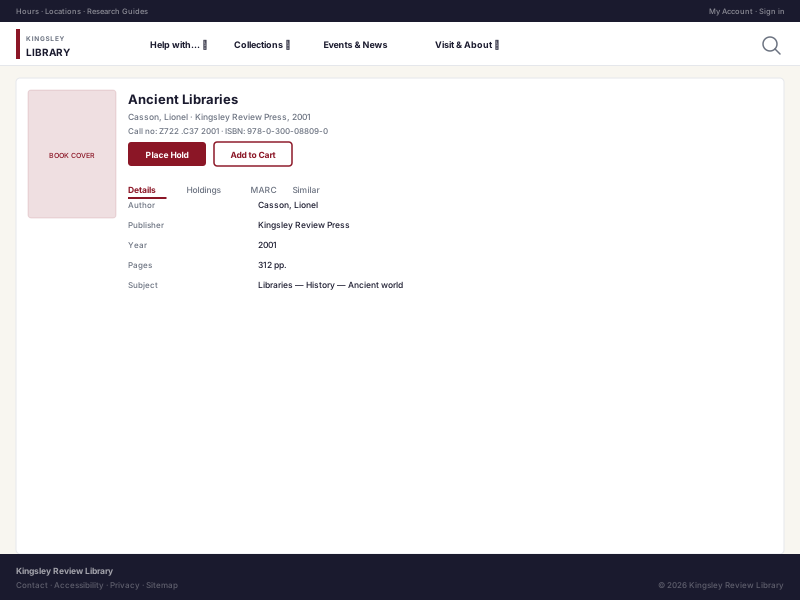
- Open the live OPAC and verify homepage, search results, bibliographic detail, and patron account pages.
Before you publish Confirm link targets, spelling, logo contrast, and mobile navigation behavior. Preview is for quality control, not just visual preference.
Example outcome
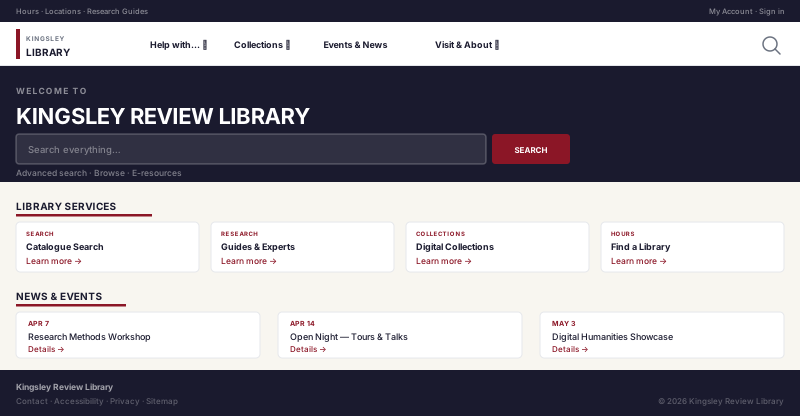
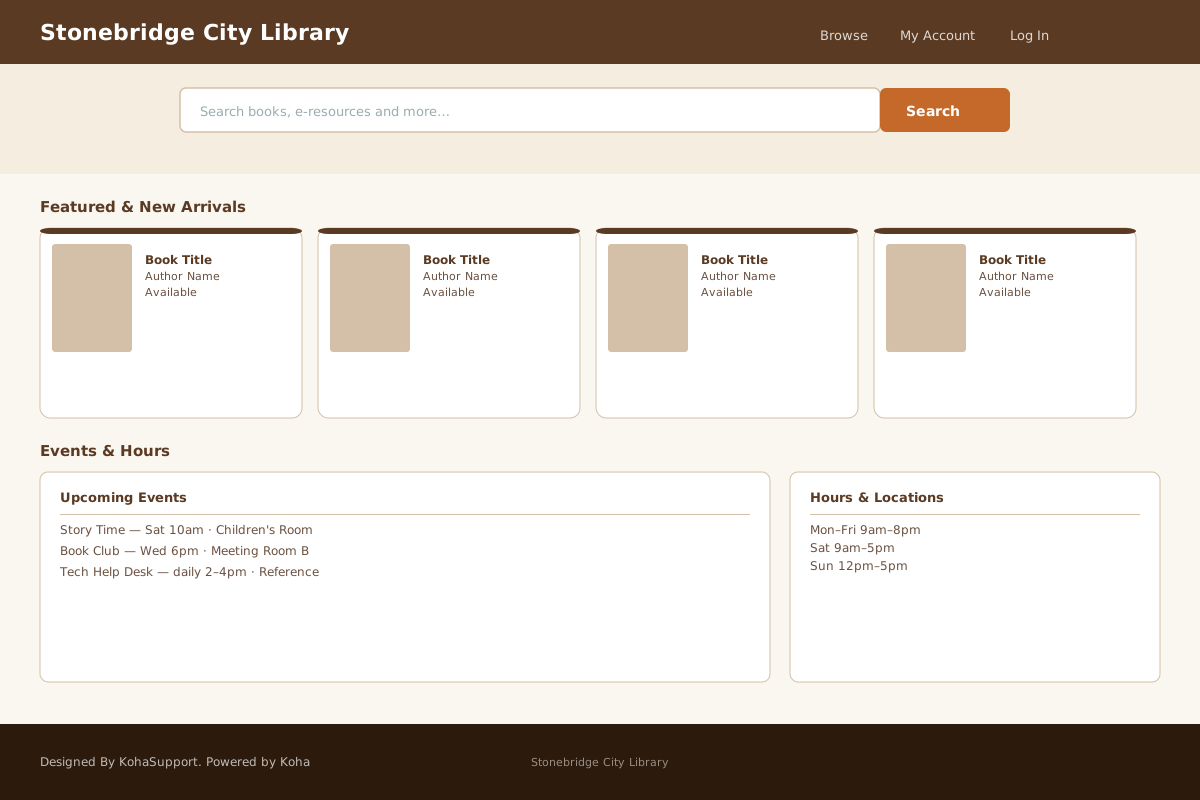
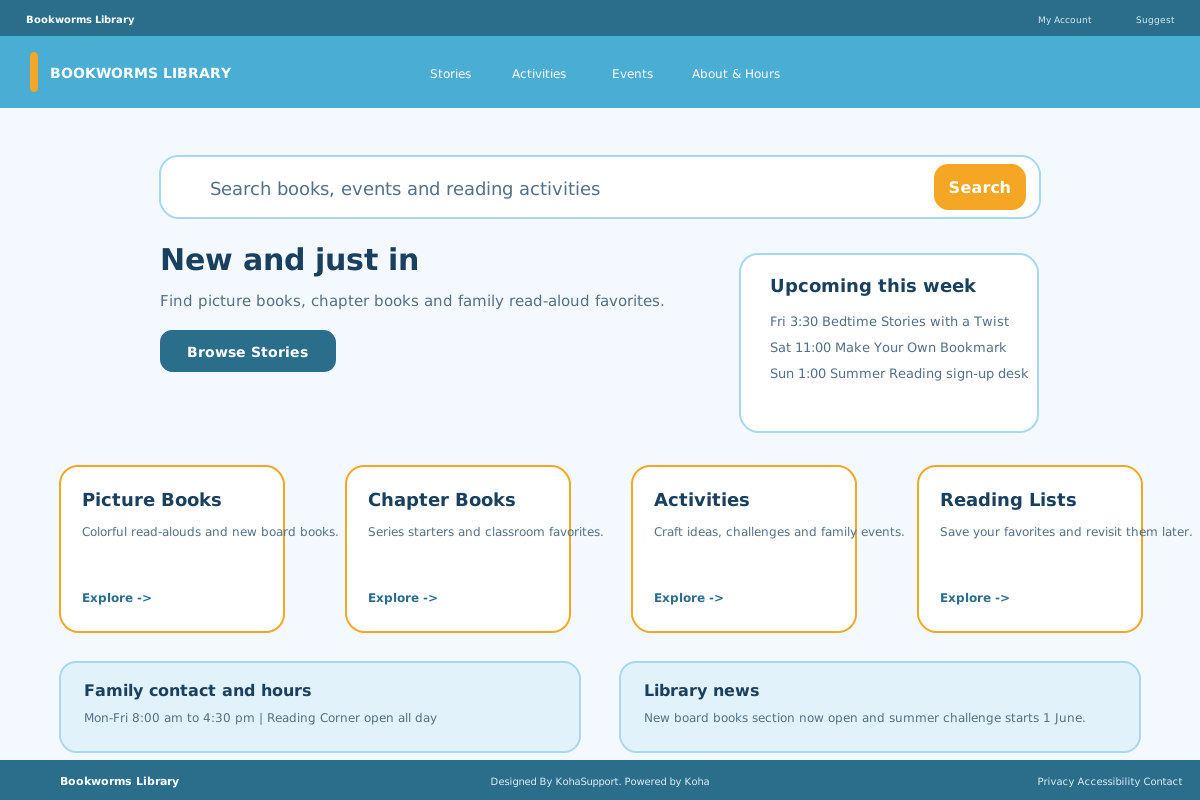
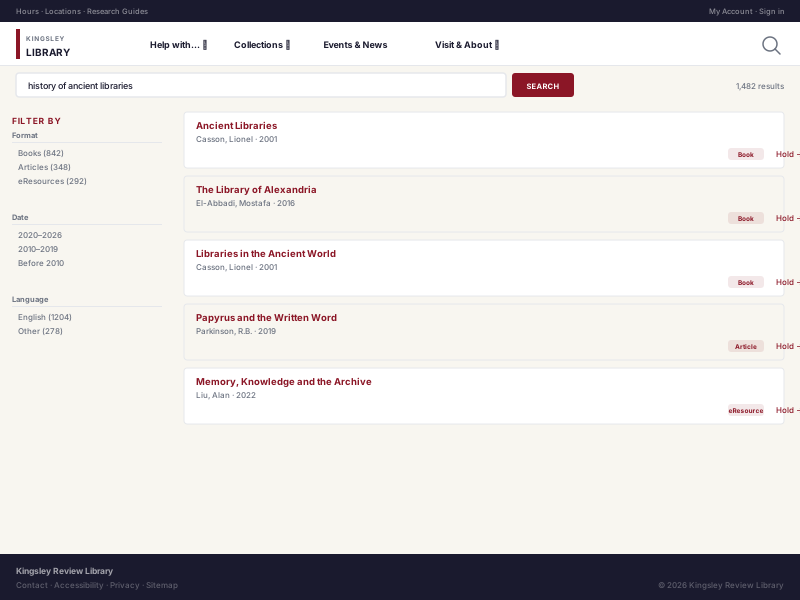
Patrons see a branded homepage, consistent navigation, and a coherent visual style across homepage, search, bib detail, and account pages.
Common mistakes
- Publishing without a mobile check
- Choosing colors with low contrast
- Overloading homepage with too many blocks
- Mixing branch-level and global changes unintentionally
- Skipping a second-person review before publish
Visual walkthrough
Representative Theme Builder visuals from the shipped theme families:
Related guides
Next Steps
More in Koha System
Was this article helpful?