
How to Configure Navigation in Koha Theme Builder™
Step-by-step guide to configuring header and top navigation in Koha Theme Builder™, including logo, menu labels, account links, and branch behavior.
This guide shows you how to configure header and navigation settings in Koha Theme Builder™.
What this element controls
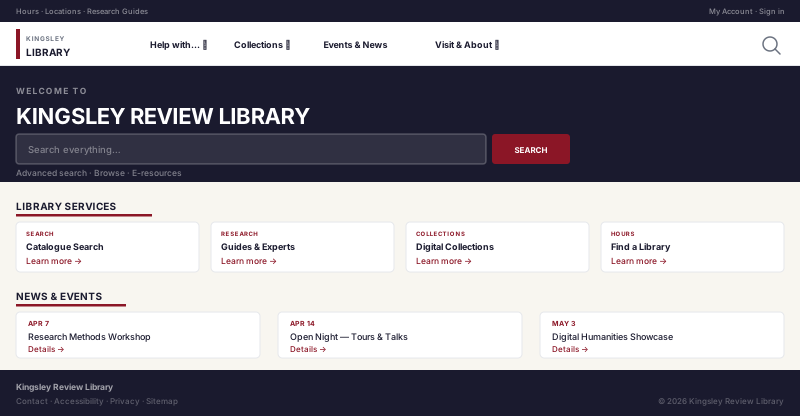
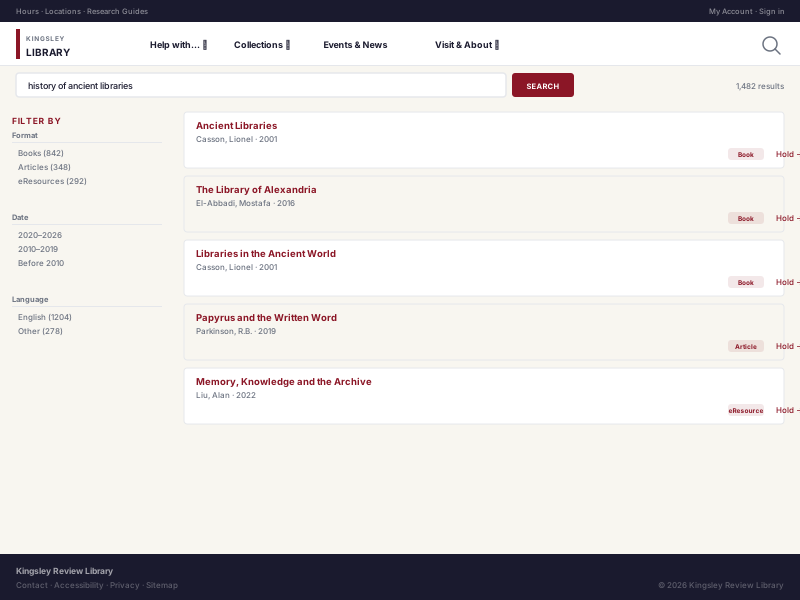
Logo display, library name, primary links, secondary links, and account/login navigation behavior.
Where patrons see it
Top navigation across major OPAC screens, including homepage, search results, bibliographic detail, and account pages.
Why this matters
Navigation clarity directly affects findability, account usage, and patron trust.
Before you start
- Final list of primary links
- Secondary links (policies, help, contact)
- Login/account label preferences
- Branch selector behavior plan (if multi-branch)
Step-by-step
- Open Theme Builder.
- Go to Header and Navigation settings.
- Upload or choose logo.
- Set library name display behavior.
- Add primary navigation items in priority order.
- Add secondary/support links.
- Configure login/account link labels and placement.
- Configure branch selector behavior (if enabled).
- Preview keyboard navigation and mobile menu behavior.
- Save draft and publish after review.
Good to know Keep top navigation focused. Too many first-level items makes mobile navigation harder to use.
Example outcome
Patrons can quickly reach search, account, hours, and contact pages from any OPAC screen.
Common mistakes
- Too many top-level links
- Vague labels like “Resources” without context
- Broken external URLs after publish
- No mobile menu test before launch
Navigation visuals
Related guides
Next Steps
More in Koha System
Was this article helpful?