
How to Configure Branding in Koha Theme Builder™
Step-by-step branding guide for Koha Theme Builder™ covering logos, colors, typography choices, and accessibility checks.
This guide shows you how to apply your library brand in Koha Theme Builder™.
What this element controls
Brand identity settings: logo, color palette, typography options, and reusable visual style tokens.
Where patrons see it
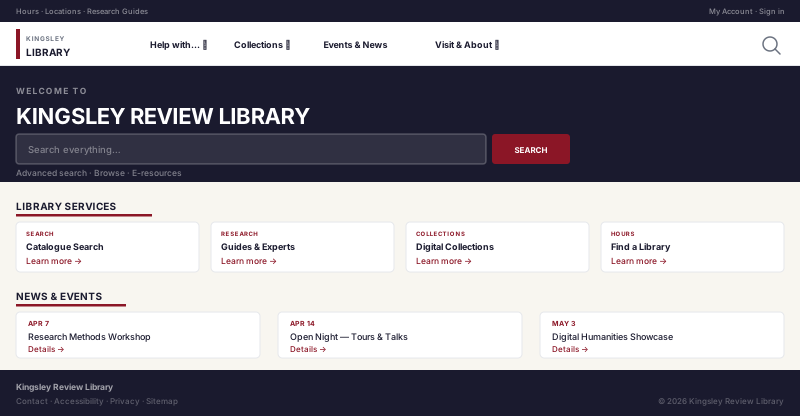
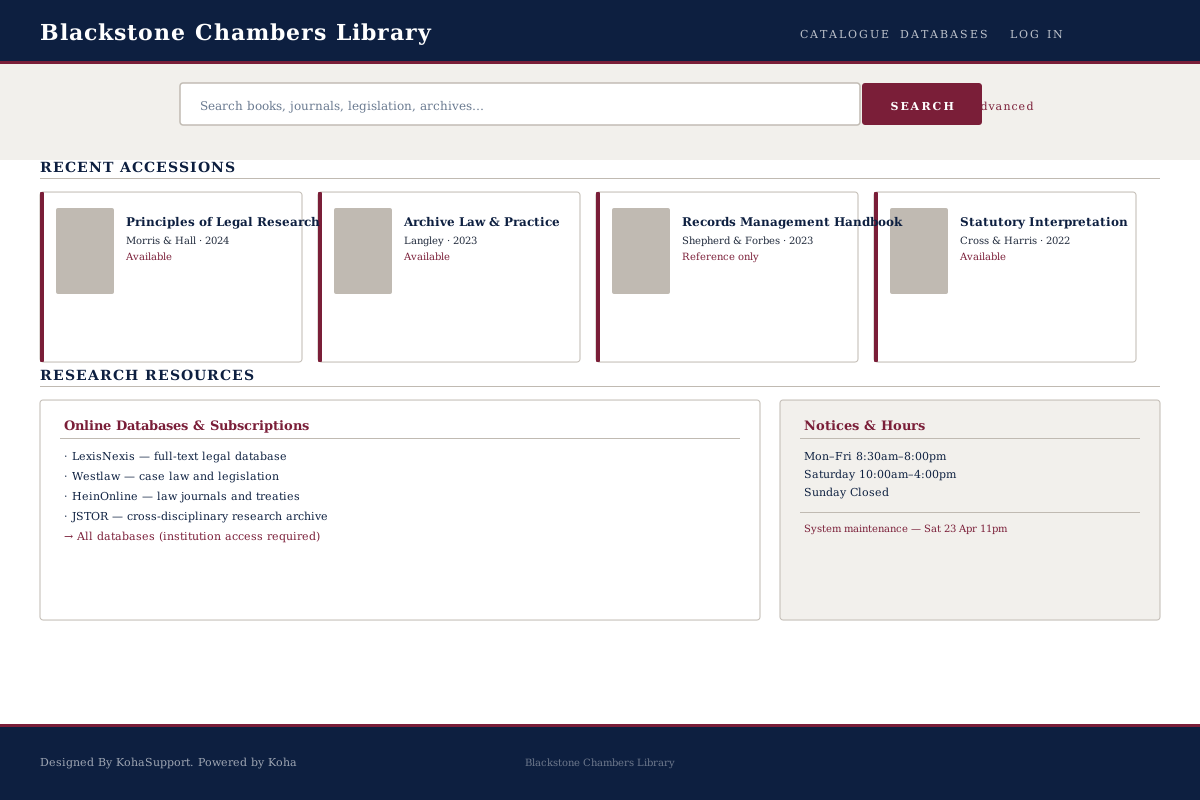
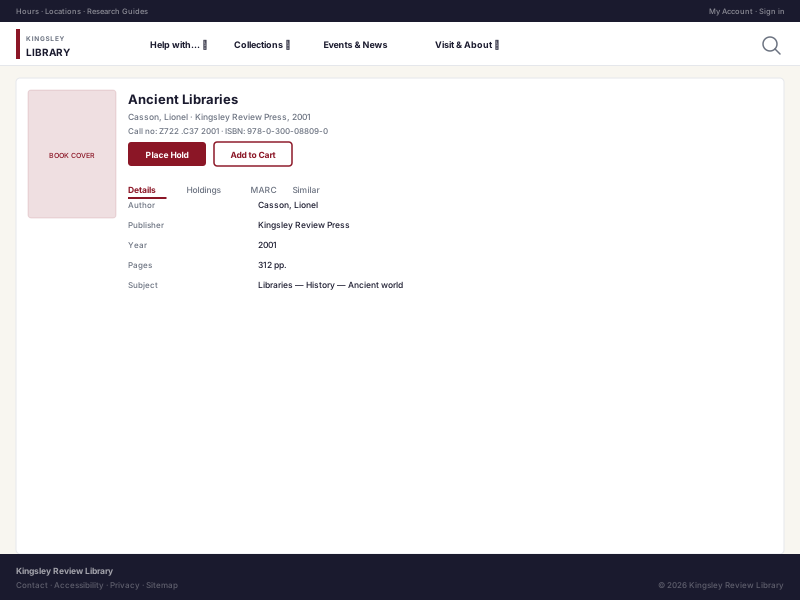
Across all themed OPAC screens, including homepage, search results, bibliographic detail, and account pages.
Why this matters
Consistent branding improves trust, recognizability, and readability while reducing one-off visual fixes.
Before you start
- Logo files (SVG preferred; PNG fallback)
- Brand color values (hex)
- Typography guidance (if your institution has it)
- Accessibility baseline (contrast expectations)
Step-by-step
- Open Theme Builder.
- Go to Branding settings.
- Upload primary logo and fallback variant if available.
- Set primary and secondary brand colors.
- Configure accent and neutral values (if supported).
- Apply typography options.
- Preview headers, buttons, links, and body text.
- Run accessibility checks for contrast.
- Save draft and request review.
- Publish when approved.
Before you publish Validate contrast on buttons, links, and text over image backgrounds. Brand compliance should never reduce legibility.
Logo and file recommendations
- Use SVG when available
- Keep transparent background variants
- Keep dimensions consistent across header and mobile views
- Avoid very small logos that lose detail in mobile navigation
Common mistakes
- Using non-brand color values ad hoc
- Choosing low-contrast accent colors
- Stretching logo images beyond natural proportions
- Skipping checks on bib detail and account pages
Branding visuals
Related guides
Next Steps
More in Koha System
Was this article helpful?