
How to Configure Search Results in Koha Theme Builder™
Step-by-step guide to configuring search results page presentation in Koha Theme Builder™, including metadata emphasis, facets, and mobile behavior.
This guide shows you how to configure the OPAC search results experience in Koha Theme Builder™.
What this element controls
Search result card/list presentation, metadata emphasis, facet panel styling, spacing, and related visual hierarchy.
Where patrons see it
On OPAC search results pages after keyword, title, author, or advanced searches.
Why this matters
Search results are the highest-traffic discovery screen. Better result hierarchy improves scan speed and reduces abandoned searches.
Before you start
- Confirm your family + preset
- Define top metadata priorities (title, author, publication date, call number)
- Confirm mobile readability expectations
Step-by-step
- Open Theme Builder.
- Go to Search Results settings.
- Choose result density (compact vs spacious, if available).
- Set title and metadata emphasis rules.
- Configure cover image behavior.
- Configure facet/sidebar visual treatment.
- Check highlighted query terms and link contrast.
- Preview desktop and mobile.
- Save draft and request review.
- Publish after approval.
What patrons will see Cleaner result scanning, clearer metadata emphasis, and more usable filters.
Common mistakes
- Over-emphasizing secondary metadata
- Low-contrast links in dense result lists
- Hiding useful facets accidentally
- Skipping mobile result checks
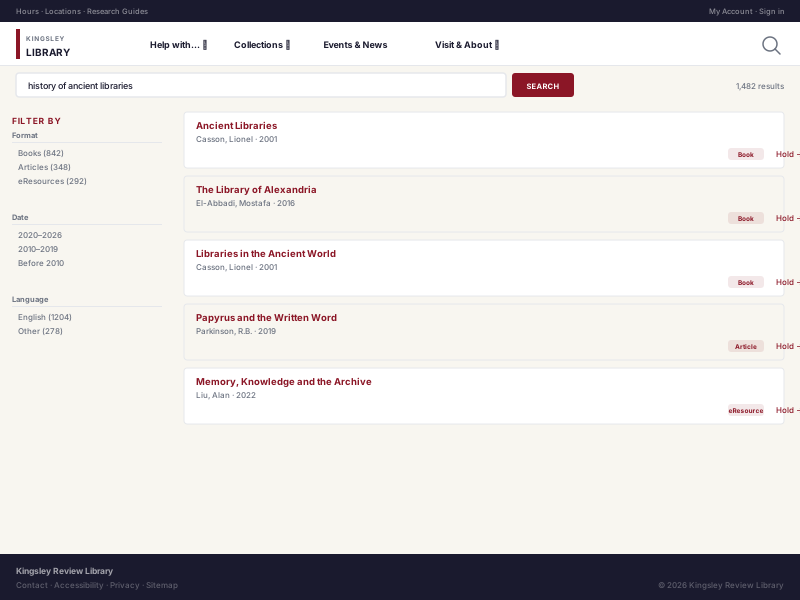
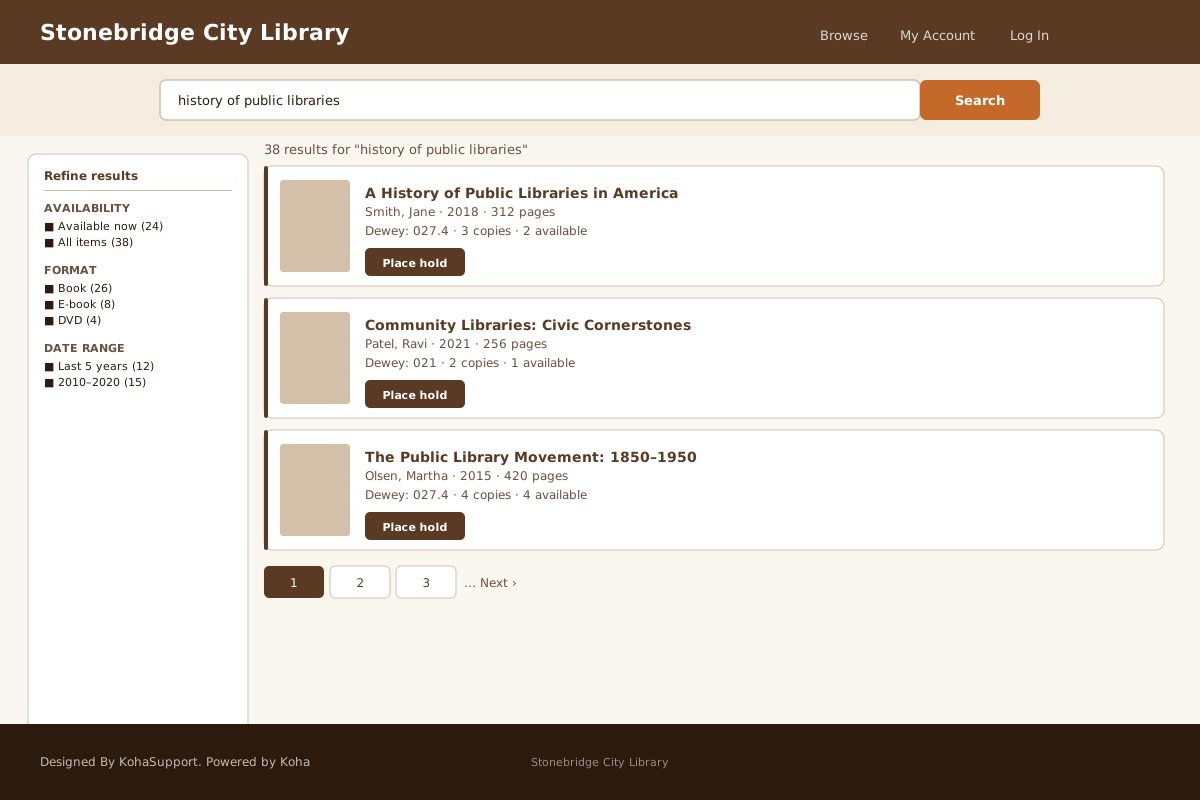
Visual examples
Related guides
Next Steps
More in Koha System
Was this article helpful?