
How to Configure Bibliographic Detail in Koha Theme Builder™
Step-by-step guide to configuring bibliographic detail page presentation in Koha Theme Builder™, including title area, holdings emphasis, and action zones.
This guide shows you how to configure the bibliographic detail page in Koha Theme Builder™.
What this element controls
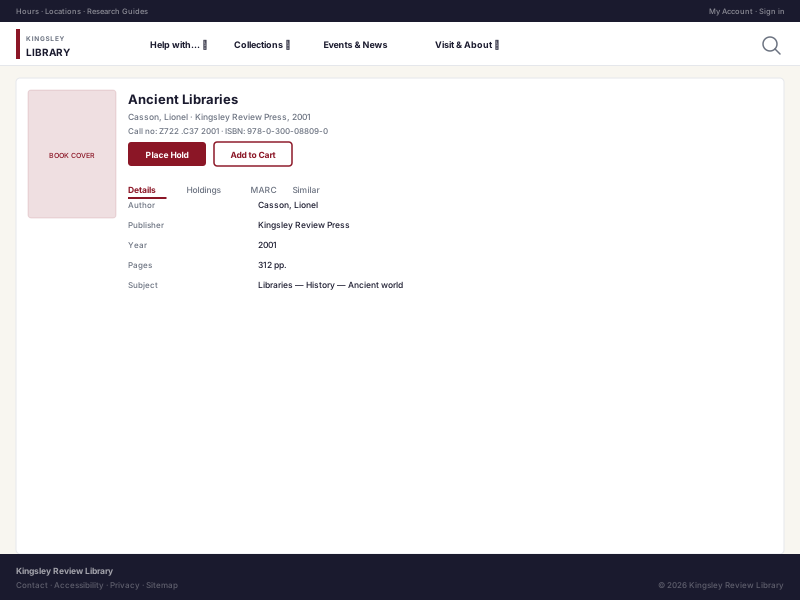
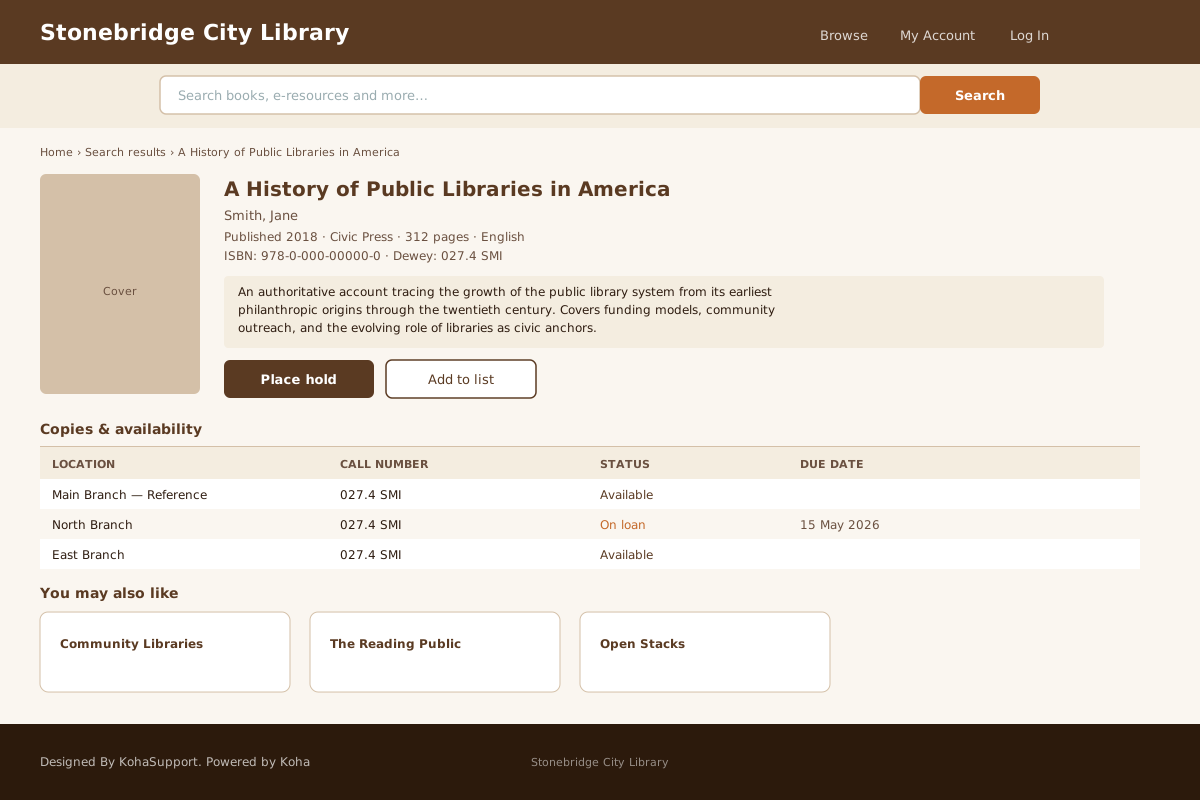
Title and metadata layout, cover treatment, holdings visibility emphasis, and visual style of action areas.
Where patrons see it
On individual record pages after selecting a search result.
Why this matters
The bibliographic detail page is where patrons decide whether an item is available and what to do next.
Before you start
- Confirm metadata priorities for your institution
- Decide cover image prominence
- Confirm action visibility priorities (holds, request, save)
Step-by-step
- Open Theme Builder.
- Go to Bibliographic Detail settings.
- Configure heading and metadata hierarchy.
- Configure cover image and summary area styling.
- Configure holdings/availability visual emphasis.
- Configure action area styling and button prominence.
- Check long-record behavior and spacing.
- Preview desktop and mobile.
- Save draft and request review.
- Publish after approval.
Good to know Theme Builder changes presentation layer and hierarchy. Core circulation and holds logic remains Koha behavior.
Common mistakes
- Over-compressing metadata blocks
- Styling actions without checking accessibility contrast
- Ignoring long-title and multi-copy records in preview
Visual examples
Related guides
Next Steps
More in Koha System
Was this article helpful?