
How to Configure the Patron Account Area in Koha Theme Builder™
Step-by-step guide to configuring the OPAC patron account area in Koha Theme Builder™, including dashboard styling, list readability, and boundaries.
This guide shows you how to configure the patron account area (My Account) in Koha Theme Builder™.
What this element controls
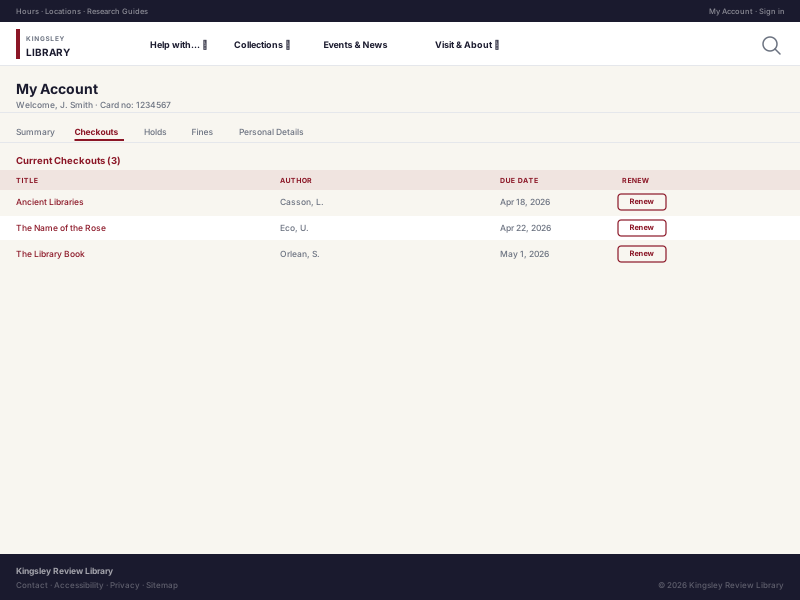
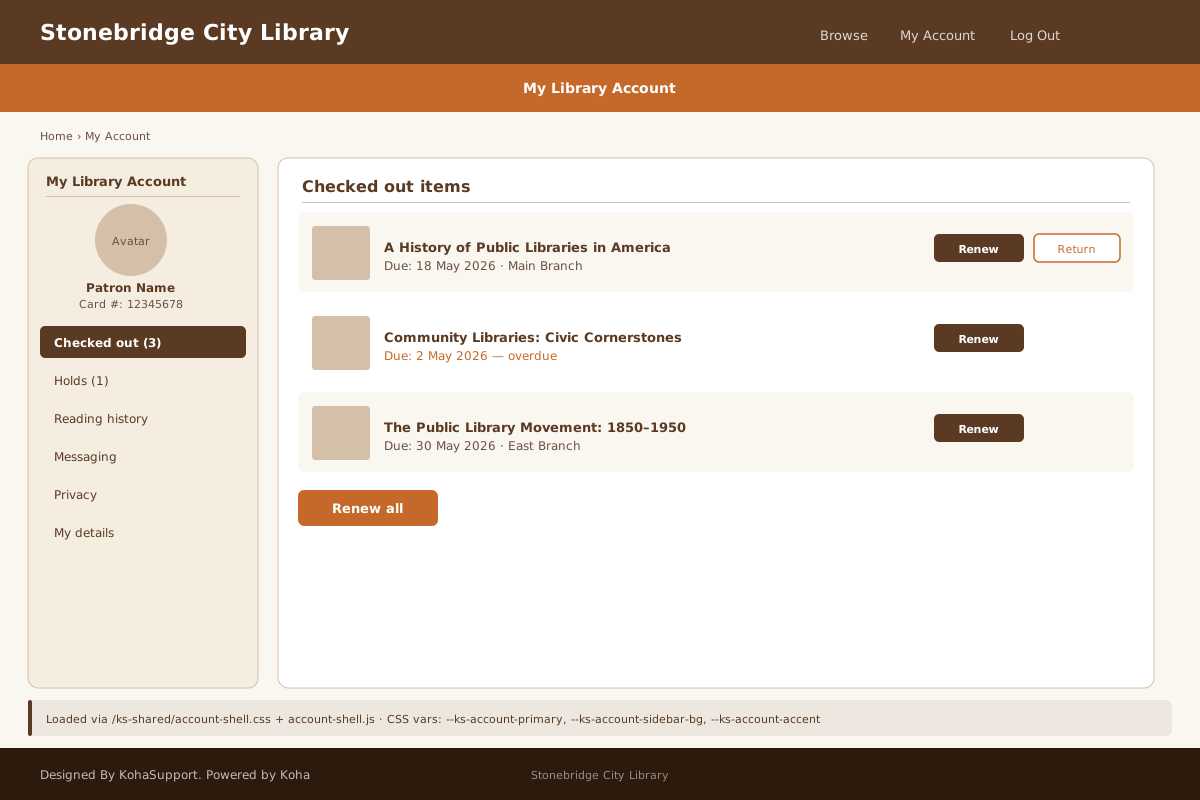
Presentation of account sections, list/table readability, heading hierarchy, and account navigation styling.
Where patrons see it
In OPAC account pages for checkouts, holds, fines/charges, and account summary.
Why this matters
Account pages drive renewals, holds, and fee awareness. Readability directly impacts successful self-service.
Before you start
- Confirm your accessibility baseline for tables and links
- Decide account section priorities
- Gather examples of current pain points from staff/patrons
Step-by-step
- Open Theme Builder.
- Go to Patron Account settings.
- Configure section heading hierarchy.
- Configure table/list readability settings.
- Configure account menu emphasis and active states.
- Check status and action visibility (renew/request links).
- Preview with realistic account data.
- Validate desktop and mobile rendering.
- Save draft and request review.
- Publish and verify live.
What Theme Builder can and cannot change Theme Builder controls presentation and hierarchy. Business logic and account rules remain controlled by Koha core preferences and circulation settings.
Common mistakes
- Styling with no real-data preview
- Under-emphasizing due dates and account actions
- Overriding spacing so tables become harder to scan
Visual examples
Related guides
Next Steps
More in Koha System
Was this article helpful?